
Table of Contents
Key Use Cases
- Open Review and see the latest best plan without configuring or running anything.
- Make sure everyone is working from one shared recommendation.
- Keep a driver–trip pairing you like through every refresh.
- Block a pairing that doesn’t work, with a reason that’s recorded for your team.
- Review why recommendations were rejected over time.
How Live Optimization Works
- An admin saves a configuration: the engine mode, the drivers, and the trips to include.
- Saving the configuration runs an optimization immediately. After that, a background job runs on a schedule, about every 10-15 minutes. Data will update within the solution inbetween recommendation runs as it updates from the TMS.
- Each run starts from the previous plan, reconciled with your latest TMS data, and improves it. The recommendation stays stable where it can and changes where operations changed.
- Everyone who opens the Live Optimizer sees the same result as a shared sandbox, with the time of the most recent run. Users already viewing it are notified when a run starts and finishes so the page refreshes.
- Planners lock and reject recommendations, and save to your TMS as usual.
Live Optimization uses a set solution algorithm that may differ for some accounts from the Bulk Optimization algorithm regardless of your account’s default engine mode.
Live Optimization is enabled per account. If you don’t see it in Review, contact your Customer Success Manager.
Navigation Overview
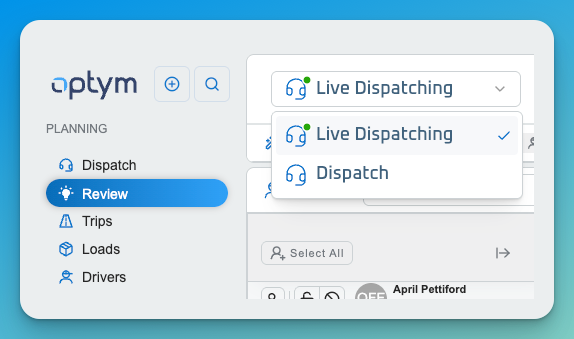
Go to Planning > Review, and choose Live Dispatching in the dropdown that selects which optimization result to view.
Reading the Live Dispatch
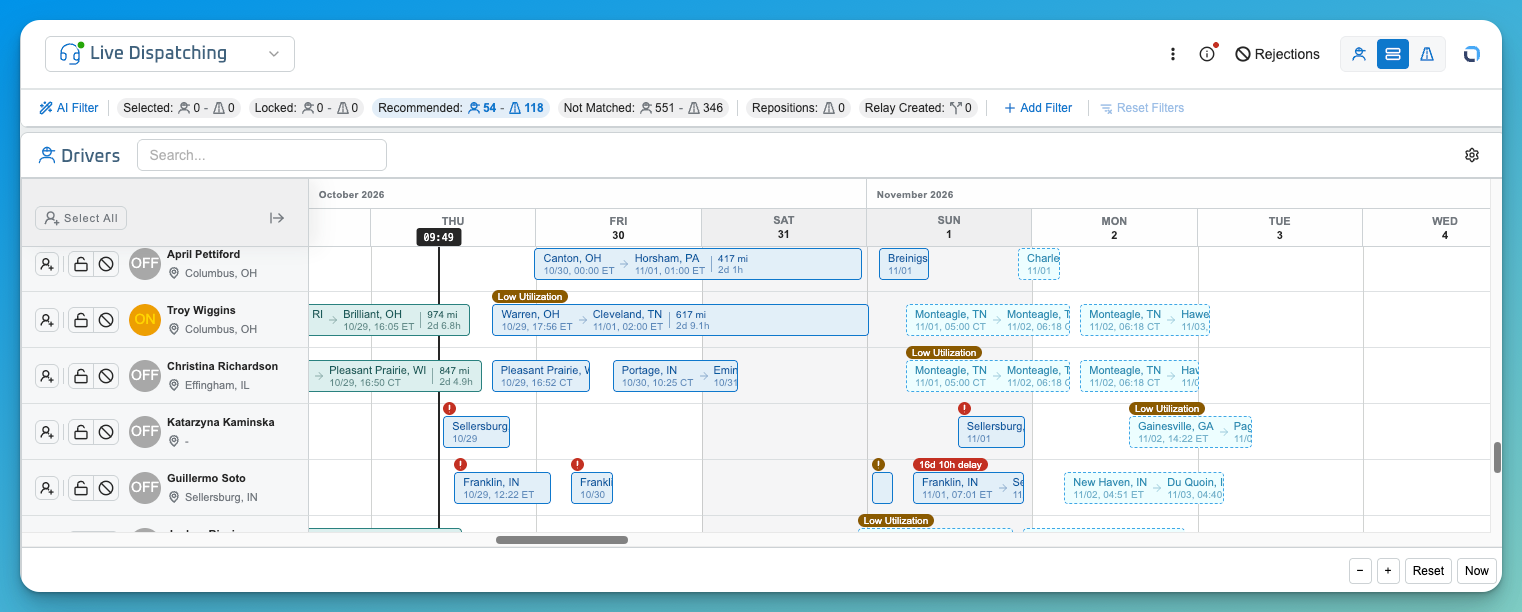
The Live Optimizer uses the same layout as the rest of Review: the Gantt, Trips grid, KPIs, filters, recommendation details, and Save to TMS. ⚠ Replace with the final link.
Last run. The date and time of the most recent completed run is shown so you know how current the plan is.
Filter pills. Five pills work as filters and KPIs at once. Click one or more to filter the list, and the counts update:
| Pill | Shows |
|---|---|
| Selected | Recommendations you’ve selected. |
| Locked | Recommendations you’ve locked. |
| Recommended | Current recommendations counts of drivers and trips. |
| Not Matched | Drivers and Trips the engine couldn’t match. |
| Brokered | Trips recommended for brokering. Hidden when nothing is brokered. |
The Reposition & Relay filter also supports click-to-apply, multi-select, and removing a chip with the ×.
KPI cards. Cards show Trips, Drivers, Revenue, Profit, Loaded Miles, and Deadhead, updated for the filters you’ve applied.
Configuring Live Optimization
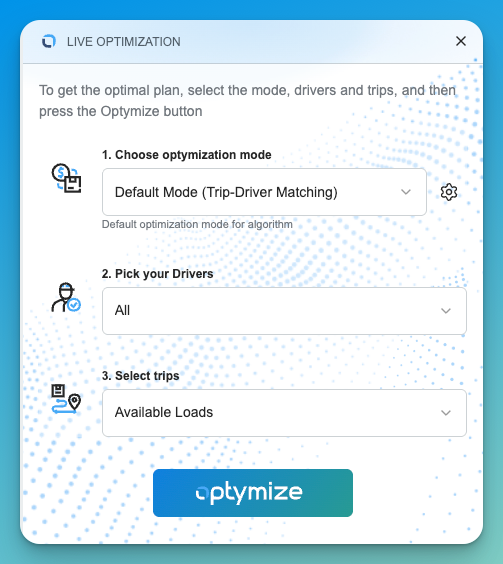
Users with permission can set what Live Optimization plans:
- Engine Mode
- Drivers (the driver population to be considered)
- Trips (the trip population to be considered)
When Live Optimization is first turned on, the configuration starts as All drivers, All trips, Default engine mode. If nothing has ever been saved, the scheduled job doesn’t run.
- Saving a changed configuration starts a run immediately.
- Optimize starts a run on demand, outside the schedule.
- A new run can’t start while another is in progress. Wait for it to finish or cancel it, the same as bulk optimization.
Everyone else can view the saved configuration but can’t change it.
Locking and Unlocking
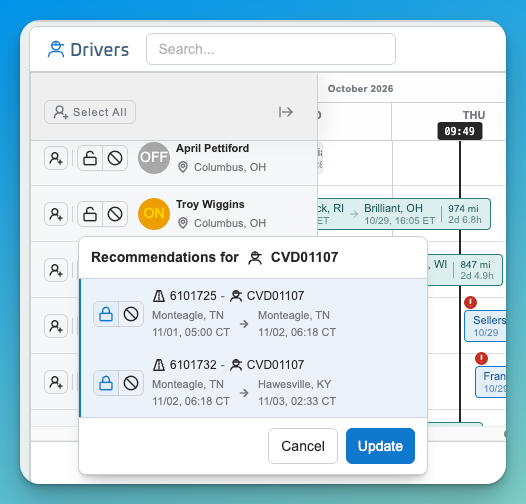
Lock a recommended driver–trip pairing to keep it through future runs.
- Locking applies to one driver–trip pairing. Other trips in the same tour stay unlocked unless you lock them too.
- Locks are shared: everyone using the Live Optimizer sees them, and locked recommendations are clearly marked.
- Future runs honor locks. A locked trip stays with that driver and is not assigned to anyone else. This holds even if the trip is no longer a perfect fit under your engine mode or rules.
- A lock is dropped when it can’t be honored: the trip was locked to more than one driver, or was reassigned to another driver before the run. Dropped locks are reported and the trip is free to be optimized. Locks on hybrid-team drivers aren’t enforced. ⚠ Confirm how dropped locks are shown to users.
- Unlock a pairing at any time. It’s no longer preserved.
- Locking is separate from selecting a recommendation for Save to TMS. One doesn’t trigger the other.
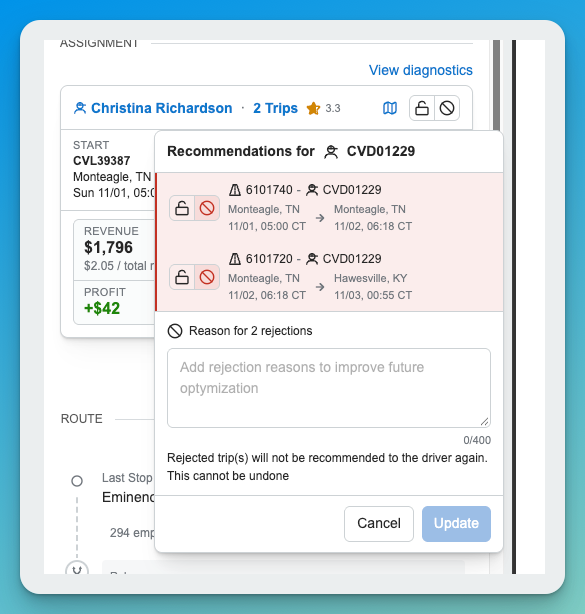
To lock or reject several trips at once, select them and choose Lock or Reject. A popup opens with all selected trips set to the action you chose.
Rejecting a Recommendation
Reject a driver–trip pairing you don’t want.
- Choose Reject on the recommendation.
- Enter a reason. A reason is required.
- Confirm.
What happens next:
- Only that pairing is removed. The other trips in the tour stay.
- The remaining plan is refreshed, and ETAs and KPIs for the rest of the tour are recalculated. If a rejection affects a tour with a Load Over Vacation, the engine re-checks that decision.
- The engine will not recommend that trip to that driver again while the rejection applies. The trip can still be recommended to other drivers.
- Rejected pairings leave the active recommendation without changing the trip’s status.
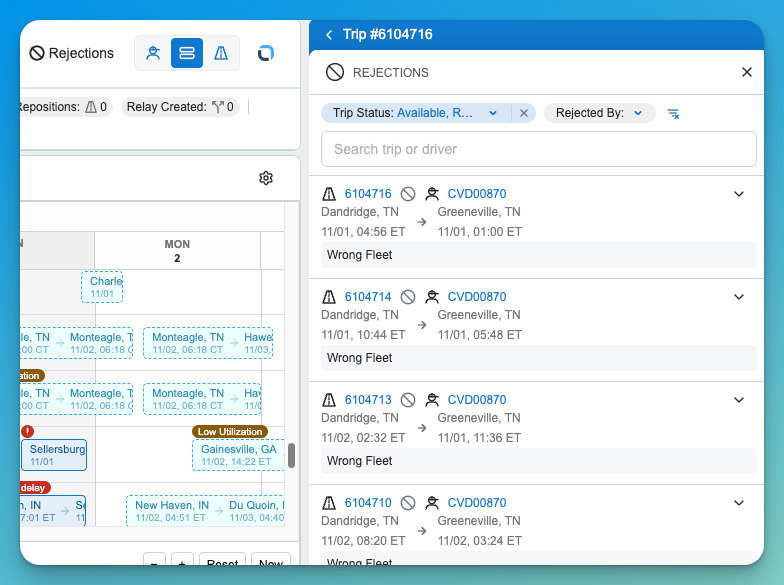
Rejection History
The Rejection History panel lists past rejections. Each entry shows the driver, the trip and lane, the reason, who rejected it, and when.
- Search, filter by Trip Status or Rejected By, and sort with the most recent first.
- Expand an entry to see the recommendation card as it looked when it was rejected.
- A total count of rejection records appears in the footer and updates as the list changes.
- History stays available after the trip’s status changes or the recommendation is no longer active.
Saving to Your TMS
Save to TMS works as it does in the rest of the Review Module. Locked and unlocked recommendations can both be saved, subject to your Save to TMS permission.
Permissions
| Role | View | Configure | Lock / Unlock | Reject |
|---|---|---|---|---|
| Admin | Yes | Yes | Yes | Yes |
| Support Admin | Yes | Yes | Yes | Yes |
| Planner | Yes | No | Yes | Yes |
| Read Only | Yes | No | No | No |
| Support Read Only | Yes | No | No | No |
Configuration uses a separate Live Optimizer Configuration permission (Read / Write).
Data Dictionary
| Name | Description | Data Type |
|---|---|---|
| Engine Mode | Engine mode used for Live Optimization runs | Enum |
| Drivers / Trips | The driver and trip populations included | List |
| Last Run | When the most recent run completed | DateTime |
| Run Frequency | How often the background run repeats | Duration |
| Lock Status | Whether a driver–trip pairing is locked | Boolean |
| Rejection Reason | Required reason given when rejecting | String |
| Rejected By / Rejected At | Who rejected a pairing and when | User / DateTime |