
Table of Contents
Key Use Cases
- Protect capacity for recurring contract lanes that arrive on a known schedule.
- Hold a driver for a tender under evaluation, instead of keeping notes outside the system.
- Capture spot market opportunities you’re considering.
- See how well your forecasts matched actual freight.
How Forecasted Loads Work
- You create a forecasted load, manually, from a recurring series, or from a spot market load.
- The engine plans with it like any other load, so drivers can be positioned toward it.
- When the real load arrives from your TMS, LoadAi reconciles the two. The forecast is linked to the real load and closed out.
- If no real load arrives by the pickup time, the forecast expires and any capacity held for it is released.
Forecasted loads never write to your TMS. Actual loads in a plan are saved to your TMS as usual. Forecasted loads stay in LoadAi.
Creating Forecasted Loads
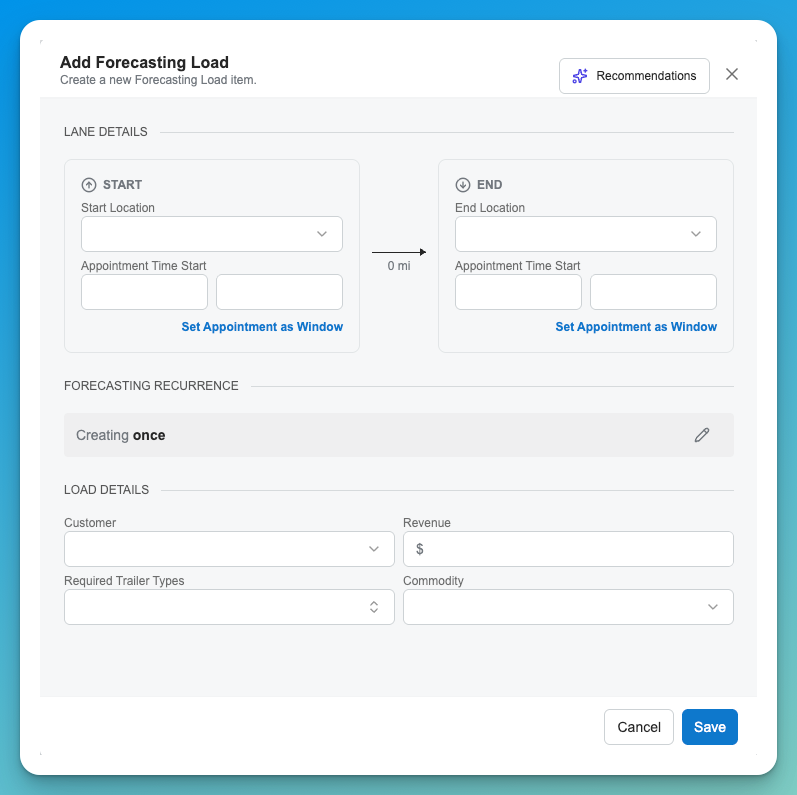
Every forecasted load needs an origin with a pickup appointment and a destination with a delivery appointment. Everything else is optional: Customer, Revenue, Required Equipment, Commodity Type, Weight, Volume, Priority, and Hazmat. A customer that isn’t in the system yet won’t block creation. Each forecasted load gets a paired trip with the same status.
Forecasted loads currently support two stops: a pickup and a final drop-off.
You can create a forecasted load from the ADD button on the navigation bar shown below: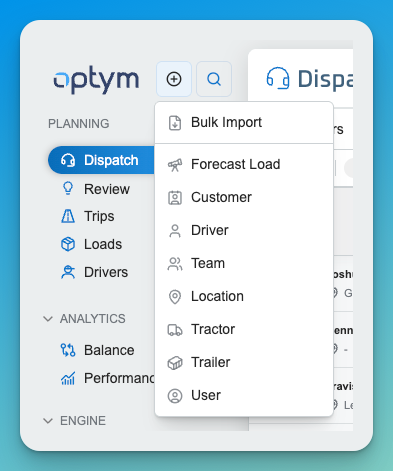
1. Create one manually.
- Start from scratch, or copy an existing load to pre-fill its details, then adjust before creating. Only the values are copied, and the new load is not linked to the original.
- Location search finds named locations and city/state results.
- The load is created immediately and is ready for planning. Its source is recorded as Manual.
2. Create from a recurring series.
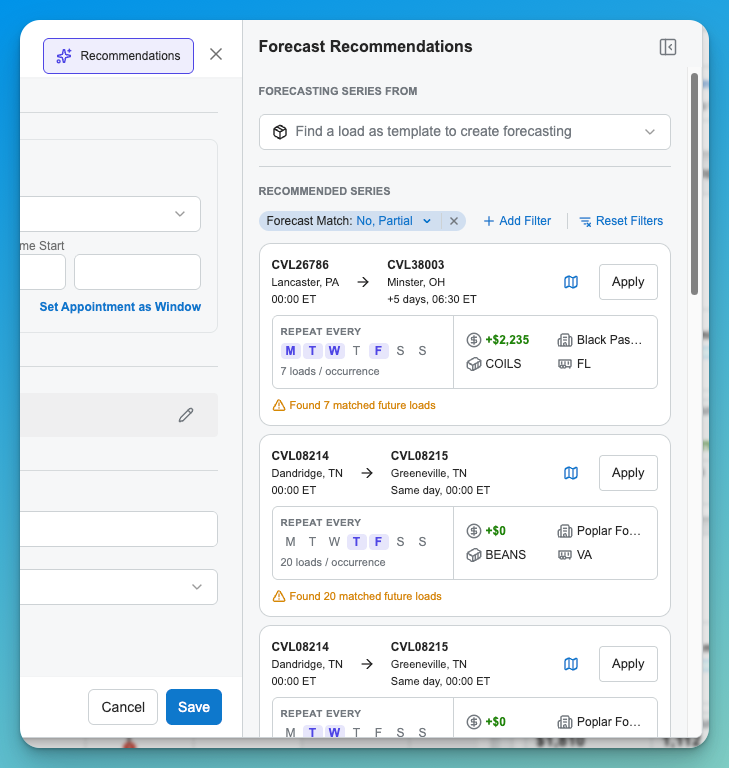
A Forecast Series creates forecasted loads on a schedule, so a repeating lane is entered once.
- Choose a recurrence of Once, Daily, Weekly (specific weekdays), or Monthly, with an interval, an end condition, and the number of loads per occurrence.
- Load IDs are generated automatically.
- Create the series from the Recommendations tab of Forecast Load Creation. The recommendations are populated by recurrences detected over the past few months from the LoadAi Machine Learning Algorithm. It lists the lane, days of the week and number of occurances per week.
- Manage series afterward on the Load Forecasting tab of Engine > Automation. See Automation Rules. There you can edit, copy, or delete a series.
- Edits apply to future loads only. Loads already created are not changed. Deleting a series also deletes its forecasted loads.
3. Create from the spot market.
Create a forecasted load from a spot market load you are considering. Its source is recorded as Spot. You can create the load from the Driver > Loadboard Search and it will copy the Lane and Revenue information to the template.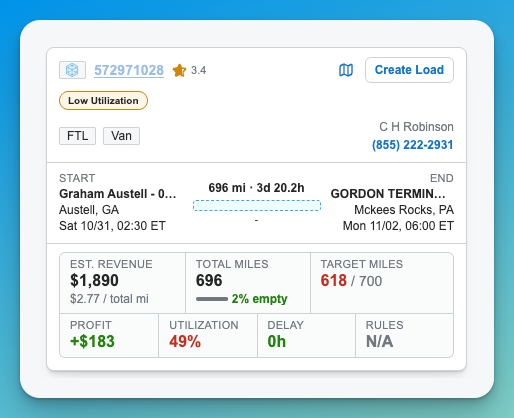
Loads created from a series are recorded with the source Recurrence Series. ⚠ Confirm the source names shown in the UI: Manual, Recurrence Series, Spot.
Seeing Forecasted Loads
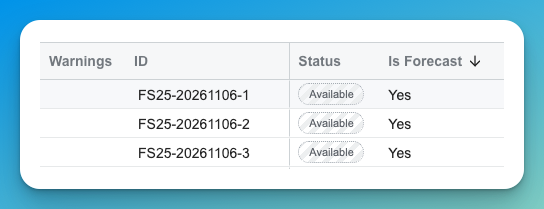
Forecasted loads and their trips are visually marked so you can tell them from actual freight in Loads, Trips, Dispatch, and Review. They keep their normal status.
- Filters: On the Loads and Trips grids, filter by Is Forecast, and by Forecast Source (Manual, Recurrence Series, or Spot). Forecast Source is its own filter. Both are hidden if forecasting isn’t enabled for your account.
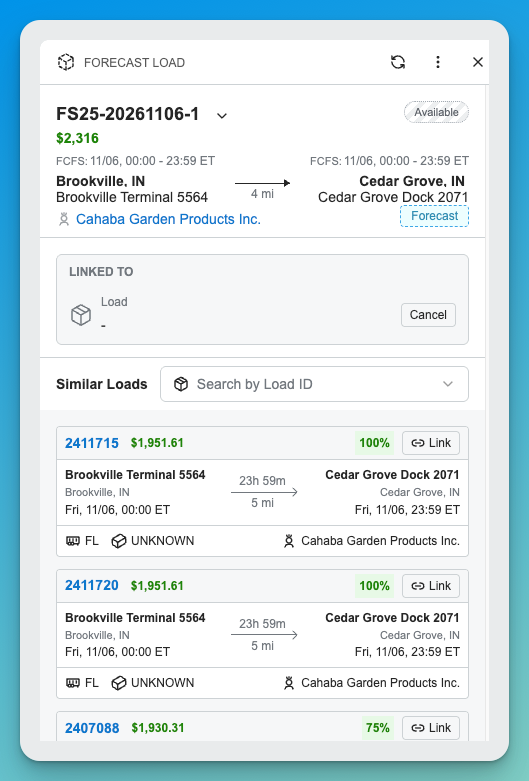
- Linked To: The Loads grid and load detail panel show which real load a forecast was reconciled with.
Planning with Forecasted Loads
- Same terms as real loads. Forecasted loads and trips can be planned manually or optimized. Revenue is optional, so when it’s blank the engine uses a default weighting for forecasts. Actual loads are prioritized over forecasted loads.
- No missed-assignment warnings. An unassigned forecast doesn’t raise one, since it will expire if no freight arrives.
- Saving a plan. Actual trip assignments are saved to your TMS using the engine’s ETA. Forecasted loads are saved in LoadAi only, with the status Planned, and keep their sequence on the driver’s timeline.
- Flexible edits. You can assign, reassign, or unassign a forecasted load’s driver at any time.
- Re-planning. Forecasted loads can be re-planned and re-optimized like other loads.
Reconciliation
When real freight arrives, LoadAi reconciles it with a matching forecast. The two records stay separate and are linked to each other. Nothing is merged or deleted. The forecast’s status changes to Canceled, it is permanently excluded from optimization, and it no longer appears as a separate active row in the Loads grid. The real load keeps a note that it was reconciled with a forecast.
Automatic reconciliation
LoadAi checks for a match when a load is created through TMS sync or CSV Load Import, and whenever a load’s key details change. A load matches a forecast when:
- Its stops are in the same order, with each stop within your Reconciliation Radius of the forecast’s stop.
- Its appointment windows overlap the forecast’s windows.
- The customer matches, if the forecast specifies one.
- The commodity, including hazmat, matches, if specified.
- The equipment type is the same or compatible, if specified.
If two open forecasts both match one incoming load, neither is reconciled automatically. The conflict is shown so you can choose.
Manual reconciliation
Open a load’s detail panel and use Linked To > Find a Load:
- From a forecast, search real loads that are Available or Assigned and not yet linked.
- From a real load, search forecasts that aren’t canceled and aren’t linked.
- Type a reference code to find a specific load, or leave it blank to see ranked Similar Loads, each with a match percentage.
How the match percentage is calculated
Each candidate gets a score from 0% to 100%. Locations score higher the closer they are. Appointments score by how much their windows overlap. Customer, commodity, and equipment score as matches. Criteria the forecast doesn’t specify are left out rather than counted against it.
| Criteria | Weight | Notes |
|---|---|---|
| Pickup location | 15 | Falls to zero at the Reconciliation Radius. |
| Dropoff location | 15 | Same calculation. |
| Pickup appointment | 12.5 | No overlap rules the load out. |
| Dropoff appointment | 12.5 | No overlap rules the load out. |
| Customer | 15 | Must match when the forecast specifies one. |
| Commodity | 15 | Includes hazmat. |
| Equipment type | 15 | Compatible earns half. |
Changes after reconciliation
- If the real load’s location, appointment, customer, commodity, or equipment changes and breaks the match, the reconciliation is reverted. The forecast reopens, the real load returns to Available, and the forecast is checked against current loads for a new match. Reconciliations you made manually are not re-evaluated automatically.
- You can revert a reconciliation yourself at any time. The forecast becomes available again.
- Once the real load is Dispatched, In Transit, or Completed, the reconciliation is locked.
Forecasts That Don’t Match
If a forecast’s pickup time passes with no matching load, it moves to an unmatched end state and the capacity held for it is released. You can also archive a forecast manually, for example when a tender you were holding capacity for is declined.
Settings and Permissions
- Forecasted Loads Enabled: The feature is available only when enabled for your account.
- Reconciliation Radius: The distance tolerance, in miles, used to match stop locations. This setting is managed in the Defaults Page.
| Role | View | Create | Edit | Delete |
|---|---|---|---|---|
| Admin | Yes | Yes | Yes | Yes |
| Planner | Yes | Yes | Yes | No |
| Dispatcher | Yes | No | No | No |
| Viewer | Yes | No | No | No |

Data Dictionary
| Name | Description | Data Type |
|---|---|---|
| Is Forecast | Marks a load as forecasted | Boolean |
| Forecast Source | How it was created: Manual, Recurrence Series, or Spot | Enum |
| Start / End Location | Origin and destination of the forecast | Location |
| Start / End Appointment | Pickup and delivery appointment windows | DateTime |
| Customer, Revenue, Commodity, Required Equipment | Optional details | Various |
| Recurrence | Once, Daily, Weekly, or Monthly, with interval and end condition | Recurrence |
| Loads per Occurrence | Forecasted loads created each time a series repeats | Integer |
| Linked To | The real load a forecast was reconciled with | Load |
| Reconciled At | When the forecast was reconciled | DateTime |
| Match % | How closely a real load matches a forecast | Percentage |