
Table of Contents
Key Use Cases
- Keep a dedicated fleet on specific customers or lanes, or keep certain drivers off certain freight.
- Prefer a particular driver for a lane with an incentive value.
- Pair a headhaul with its return load so round trips are planned together.
- Correct appointment types, windows and handling times that arrive from your TMS.
- Manage Forecasted Load Series
- Turn on live ETA updates back to your TMS for selected trips.
Navigation Overview
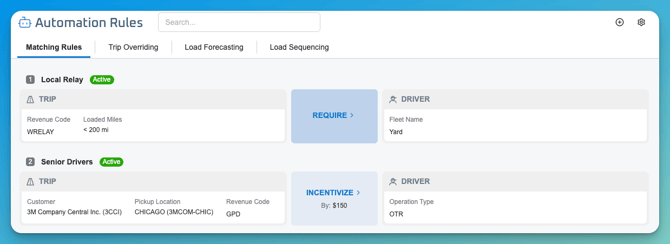
Go to Engine > Automation. The page has four tabs: Matching Rules, Load Sequencing, Load Forecasting and Trip Overriding. Each tab shows its rules as a numbered list. Every rule card shows its name and an Active / Inactive badge, and you can turn rules on or off individually.
Matching Rules
Matching Rules influence how the optimization engine values or eliminates pairings between trips and drivers. Each rule has trip conditions, driver conditions, a rule type, a direction, and for soft rules a dollar value.
Rule types
| Type | Kind | Effect |
|---|---|---|
| REQUIRE | Hard | The engine must match the specified trips and drivers together. |
| PROHIBIT | Hard | The engine may never match the specified trips and drivers. |
| INCENTIVIZE | Soft | Adds a dollar value to the score when conditions match, making the pairing more attractive. |
| PENALIZE | Soft | Subtracts a dollar value when conditions match, discouraging the pairing. |
Direction
| Direction | Meaning |
|---|---|
| One-way (trip to driver) | The specified trips apply the constraint to the specified drivers. |
| One-way (driver to trip) | The specified drivers apply the constraint to the specified trips. |
| Mutual | The constraint applies in both directions. |
Conditions
Scope the trip side by any combination of Customer, Revenue Code, Fleet Type (you can select multiple values), Required Trailer Type, Pickup Location, Dropoff Location, Any Stop Location, Is Driver Assist, and Loaded Miles. Or choose All Trips.
Scope the driver side by any combination of Tags, Driver Name / ID, Operation Type, Default Tractor, Fleet Code, Driver Manager, and Team Leader. Or choose All Drivers.
Rule cards and detail panels clearly label rules that apply to All Trips or All Drivers.
Creating a Matching Rule
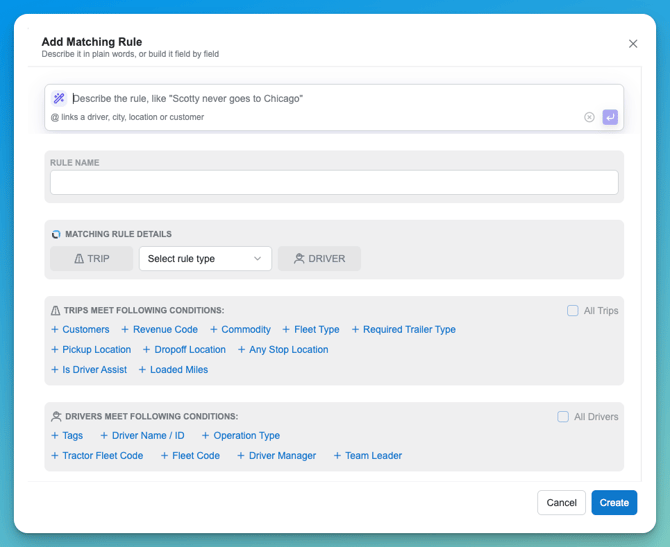
- Select Add Matching Rule.
- Enter a Rule Name.
- Choose the Matching Rule Type: first the direction, then REQUIRE, INCENTIVIZE, PENALIZE or PROHIBIT. For soft types, enter the dollar value.
- Add Trip conditions or check All Trips.
- Add Driver conditions or check All Drivers.
- Select Create.
Examples
| Goal | Type | Setup |
|---|---|---|
| Keep a dedicated fleet on one customer’s freight | REQUIRE, Mutual | Trips: Customer = [customer]. Drivers: Tag = [fleet tag]. |
| Keep local drivers off long-haul loads | PROHIBIT, Mutual | Trips: Loaded Miles > 150. Drivers: Tag = [local tag]. |
| Prefer a specific driver on a lane | INCENTIVIZE, one-way | Trips: Pickup = A, Dropoff = B. Drivers: [driver]. Value: [amount]. |
Creating a Rule with an AI Prompt
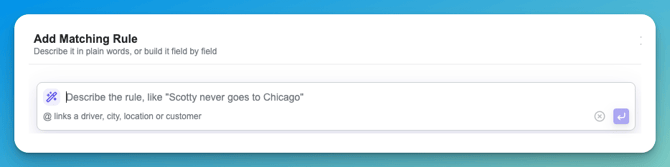
Instead of filling in the form, describe the rule in plain language, for example, “Scotty never goes to Chicago.” LoadAi fills in the rule form for you.
- Link records as you type. Type @ to see suggestions grouped by Drivers, Cities, Locations and Customers. Typing three or more characters of a known name also opens suggestions. Use the arrow keys with Enter or Tab to link one, and Esc to keep your text as typed. A linked record becomes a chip you can remove.
- Resolve unclear names in place. If a name could match several records, the words are highlighted and numbered, and a needs a match panel appears under the prompt. Pick one driver, or one city or several locations, for each word, then select Apply to rule. Keep as text fills in only what is unambiguous. No form fields change until you apply.
- Name and type. The rule name is generated from your prompt and labeled “Named from your prompt.” Edit it and it stops updating, with a Use suggested name option. Negative wording such as “not,” “never,” or “avoid” sets a Never match rule; otherwise it’s Prefer.
- Review and undo. Fields filled by the prompt are visibly marked, and each condition chip can be removed. A status line reads “Filled N fields from your prompt,” with an Undo to clear them.
Trip Overriding
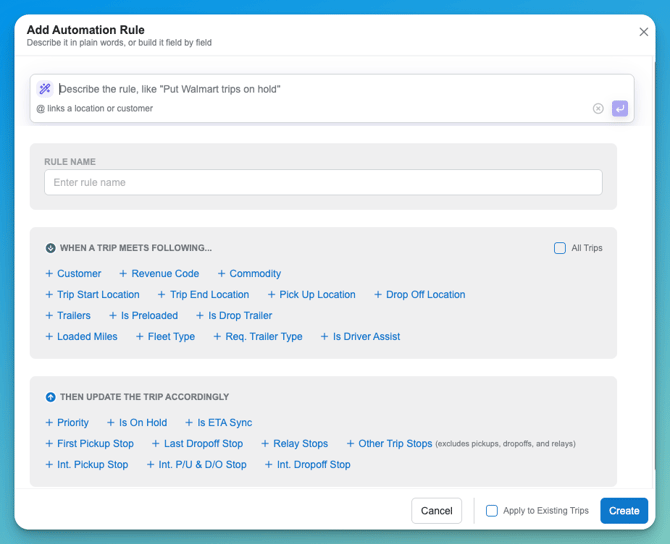
Trip Override rules correct and enrich trip data as it arrives from your TMS without changing anything in your TMS. Each rule is When a Trip meets…, then update the Trip accordingly. Rule cards show Last Updated and Last Applied timestamps. Rule changes are re-applied to existing trips that aren’t completed. If a TMS sync brings back the original value, the rule applies again, and the TMS value itself is never changed.
When a Trip meets… (conditions)
Customer, Revenue Code, Trip Start Location, Trip End Location, Pickup Location, Drop Off Lcoation, Trailers (Empty or Assigned), Is Preloaded, Is Drop Trailer, Loaded Miles, Fleet Type, Required Trailer Type, Is Driver Assist.
Then update the Trip (actions)
- Priority: High, Medium or Low.
- Is On Hold: exclude the trip from optimization.
- Requirements: apply a driver REQUIRE, INCENTIVIZE, PENALIZE or PROHIBIT, for example by driver tag.
- Sync ETA: enable live ETA sync to your TMS for matching trips. Trip Detail shows Sync ETA: Enabled. Applies to trips arriving by TMS sync.
- Stop-level appointment overrides for the First Pickup, Last Dropoff, Intermediate Pickup, Intermediate Pickup & Dropoff, Intermediate Dropoff stop, as well as Relay Stops and Other Trip Stops.
Stop-level settings
| Setting | Options |
|---|---|
| Appt Type | For a pickup stop: Appointment Window (default) or No Earlier Than. For a dropoff stop: Appointment Window (default) or No Later Than. Changing the stop resets Appt Type to Appointment Window. |
| Limit to Operating Hours | Yes or No: whether to allow arrival only during location operating hours or outside of operating hours (example: your driver has access to the facility or yard outside of operating hours) |
| Handling Time | Overrides dwell time at the stop, in minutes. |
When Appt Type is Appointment Window, choose one mode:
| Mode | What it does |
|---|---|
| Keep as-is | Leaves the appointment unchanged from TMS value. |
| Extend | Widens the window with Early by and Late by inputs, each in days and hours. For a No Later Than appointment, Early by is disabled; for No Earlier Than, Late by is disabled. |
| All day | Applies the full 00:00 to 23:59 window. |
| Custom | You set an explicit Start and End. An End earlier than or equal to the Start is an overnight window, and a +1 day marker appears beside End. |
The rule list shows each rule’s Appt Type, window mode and values, leaving out zero values. Trip and load screens show the adjusted windows.
Creating a Trip Override rule
- Select Add Automation Rule.
- Enter a Rule Name.
- Add one or more When a Trip meets… conditions.
- Add the fields to update under Then update the Trip accordingly.
- Select Create. The rule applies on the next rule cycle.
Load Forecasting
The Load Forecasting tab lists your Forecasted Load Sequences. A sequence describes freight you expect on a lane: where it starts and ends, when it is picked up and delivered, how often it repeats, and how many loads to expect each time. LoadAi uses these forecasts to plan for freight before it is tendered. In optimization, actual loads are prioritized over forecasted loads.
Where sequences come from. Forecasted Load Sequences are created from the Recommendations tab of Forecast Load Creation. This tab is where you review and manage them afterward. ⚠ Confirm the navigation path to Forecast Load Creation. Link to the Forecasted Loads article here once it is published.
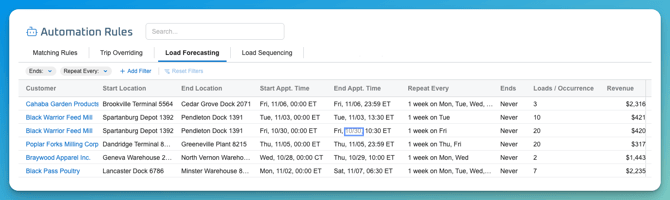
The sequence list
Each row is one sequence.
| Column | What it shows |
|---|---|
| Start Location / End Location | The origin and destination of the forecasted loads. |
| Start Appt. Time / End Appt. Time | The appointment window for the sequence, with the date, time, and time zone. |
| Repeat Every | How often the sequence repeats, for example “1 week on Mon, Tue, Wed.” |
| Ends | When the repeating stops, for example “Never.” |
| Loads / Occurrence | How many forecasted loads are created each time the sequence repeats. |
| Customer | The customer the freight is for. Select it to open the customer. |
| Revenue | The expected revenue. |
| Required Trailer Types | The trailer types the freight requires. |
| Commodity | The commodity being shipped. Select it to open the commodity. |
Filtering
Use the filter bar above the list to focus on the sequences you care about. Two filters, Ends and Repeat Every, are available by default. Use Add Filter to add more.
Adding a filter. Select Add Filter, then choose a field from the list. Type in the Filter by… box to find a field quickly. Each filter you add appears as a chip in the bar, and you can use several at once to narrow the list further.
| Filter | Narrows the list by |
|---|---|
| Ends | When a sequence stops repeating, for example sequences that never end. (Default filter) |
| Repeat Every | How often a sequence repeats. (Default filter) |
| Commodity | The commodity being shipped. |
| Customer | The customer the freight is for. |
| Start Location | Where the forecasted loads begin. |
| End Location | Where the forecasted loads are delivered. |
| Start Appt Time | The sequence’s start appointment time. |
| End Appt Time | The sequence’s end appointment time. |
| Revenue | The expected revenue. |
| Trailer Type | The trailer types the freight requires. |
Resetting filters. Select Reset Filters to clear every filter and show all sequences again.
Example. To review the forecast for one customer’s refrigerated freight, add Customer and Trailer Type, choose your values, and the list shows only matching sequences.
- Choosing values: How you choose a filter’s values, whether you can select more than one value per filter, and whether text fields use search.
- Date, time and revenue filters: Whether Start Appt Time, End Appt Time and Revenue use ranges or operators, such as “greater than.”
- Default chips: What the Ends and Repeat Every dropdowns offer, and whether they can be removed.
- Removing a filter: How to remove a single filter without using Reset Filters.
- Trailer Type: The filter says “Trailer Type” while the column says “Required Trailer Types.” Check which is correct, or keep both as shown.
- Saved filters: Whether filters here can be saved as views, as on other pages. If so, link to the Saved Views article.
Managing sequences
From the list you can:
- Edit a sequence to change its details.
- Copy a sequence to create a new one from it.
- Delete a sequence you no longer need.
You can also manage the forecasted loads that belong to a sequence. Deleting a Forecasted Load Series will also delete its individual forecasted loads.
Load Sequencing
Load Sequencing rules define paired movements. When a driver takes a headhaul load, the engine sequences a matching backhaul as the next movement, even if that backhaul isn’t in the set being optimized. All rules are of type Round Trip.
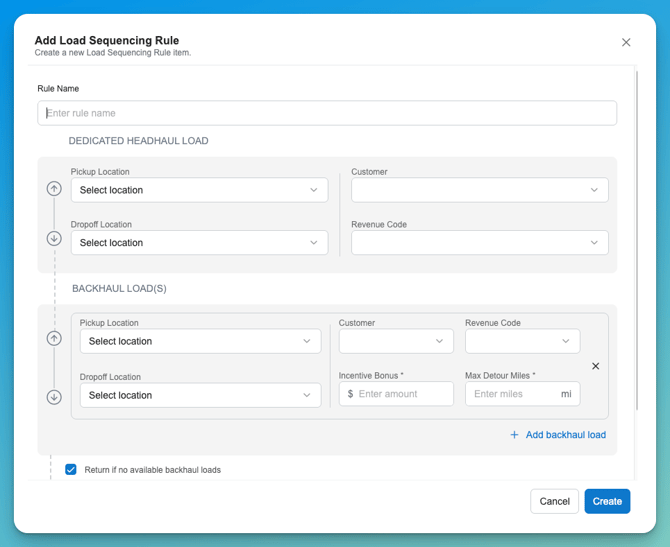
| Section | Fields |
|---|---|
| Dedicated Headhaul Load | Pickup Location, Dropoff Location, Customer, Revenue Code (leave any blank for “Any”) |
| Backhaul Load(s) | Pickup Location, Dropoff Location, Customer, Revenue Code, Incentive Bonus (dollars added when this backhaul follows the headhaul), Max Detour Miles. Add more than one backhaul per rule. |
Return if no available backhaul loads. Yes: the driver deadheads back to the headhaul pickup location. No: no return is implied and the rule doesn’t fire.
On the Dispatch Gantt, a trip matching an active rule shows the expected next movement as an outlined segment after it. A backhaul planned without its headhaul triggers a warning.
To create one: select Add Load Sequencing Rule, enter a name, set the headhaul, add at least one backhaul, choose the return setting, and select Create.
Data Dictionary
| Name | Description | Data Type |
|---|---|---|
| Rule Name | Display name of the rule | String |
| Status | Whether the rule is Active or Inactive | Enum |
| Rule Type | REQUIRE, PROHIBIT, INCENTIVIZE or PENALIZE (matching); Round Trip (load sequencing) | Enum |
| Direction | One-way (trip to driver), one-way (driver to trip), or Mutual | Enum |
| Value | Dollar amount for soft rules and backhaul incentives | Currency |
| Max Detour Miles | Maximum extra miles to reach a backhaul pickup | Integer |
| Return if no available backhaul loads | Whether the driver returns empty when no backhaul is found | Boolean |
| Appt Type | Appointment type applied to a stop | Enum |
| Appointment Window Mode | Keep as-is, Extend, All day, or Custom | Enum |
| Limit to Operating Hours | Constrains the appointment to the location’s hours | Boolean |
| Handling Time | Dwell time override at the stop | Duration |
| Sync ETA | Whether live ETA updates are sent to your TMS for the trip | Boolean |
| Last Updated / Last Applied | When the rule was last edited and last applied | DateTime |