
Table of Contents
Key Use Cases
- Set the right appointment type where the TMS sends none or the wrong one.
- Widen, open up, or customize an appointment window for a location or customer.
- Fix handling time at stops where the TMS default doesn’t match reality.
- Allow arrival outside operating hours where your driver can access the facility or yard.
- Set priority or place trips on hold based on trip characteristics.
- Apply a driver requirement from a trip condition.
- Turn on live ETA updates back to your TMS for selected trips.
Navigation Overview
Go to Engine > Automation and open the Trip Overriding tab. Rules appear as a numbered list of cards. Each card shows the rule name, an Active / Inactive badge, Last Updated and Last Applied timestamps, and the rule’s When a Trip meets… and Then update the Trip accordingly panels. You can turn a rule on or off at any time.
How Trip Override Rules Work
Each rule follows an if/then pattern: When a Trip meets… these conditions, then update the Trip accordingly.
- Rules don’t change your TMS. They change how LoadAi interprets the trip for planning.
- Rule changes are re-applied to existing trips that aren’t completed.
- If a TMS sync brings back the original value, the rule applies again. The TMS value itself is never changed.
When a Trip Meets… (Conditions)
Combine one or more conditions to say which trips a rule applies to:
| Condition | Matches |
|---|---|
| Customer | The customer on the trip. |
| Revenue Code | The revenue code on the trip. |
| Trip Start Location | The first stop of the trip. |
| Trip End Location | The last stop of the trip. |
| Pickup Location | A pickup stop. |
| Drop Off Location | A drop-off stop. |
| Trailers | Whether the trip’s trailer is Empty or Assigned. |
| Is Preloaded | Whether the load is staged at the origin. |
| Is Drop Trailer | Whether the trip needs a trailer drop. |
| Loaded Miles | The loaded miles on the trip. |
| Fleet Type | The trip’s fleet type. You can select multiple values. |
| Required Trailer Type | The trailer type the load requires. |
| Is Driver Assist | Whether driver assist is required. |
Then Update the Trip (Actions)
When a trip meets the conditions, the rule can update one or more of the following.
- Priority: High, Medium, or Low.
- Is On Hold: exclude the trip from optimization.
- Requirements: apply a driver REQUIRE, INCENTIVIZE, PENALIZE, or PROHIBIT, for example by driver tag. See Matching Rules for what each type does. ⚠ Replace with the final link.
- Sync ETA: enable live ETA sync to your TMS for matching trips. Trip Detail shows Sync ETA: Enabled. Applies to trips arriving by TMS sync.
- Stop-level appointment overrides for any of these stops: First Pickup, Last Dropoff, Intermediate Pickup, Intermediate Pickup & Dropoff, Intermediate Dropoff, Relay Stops, and Other Trip Stops.
Stop-Level Appointment Settings
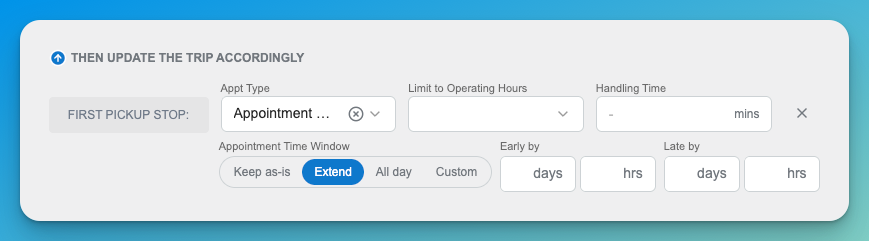
Add the stop you want to change, and set the following for it. Switching the stop resets Appt Type to Appointment Window.
| Setting | Options |
|---|---|
| Appt Type | For a pickup stop: Appointment Window (default) or No Earlier Than. For a dropoff stop: Appointment Window (default) or No Later Than. |
| Limit to Operating Hours | Yes or No. Choose whether arrival is allowed only during the location’s operating hours, or also outside them (for example, when your driver has access to the facility or yard after hours). |
| Handling Time | Overrides dwell time at the stop, in minutes. |
Appointment Window modes
When Appt Type is Appointment Window, choose one mode.
| Mode | What it does |
|---|---|
| Keep as-is | Leaves the appointment unchanged from the TMS value. |
| Extend | Widens the window with Early by and Late by inputs, each in days and hours. For a No Later Than appointment, Early by is disabled; for No Earlier Than, Late by is disabled. |
| All day | Applies the full 00:00 to 23:59 window. |
| Custom | You set an explicit Start and End time. An End earlier than or equal to the Start is an overnight window, and a +1 day marker appears beside End. |
The rule list shows each rule’s Appt Type, window mode, and values, and leaves out zero values.
Creating a Trip Override Rule
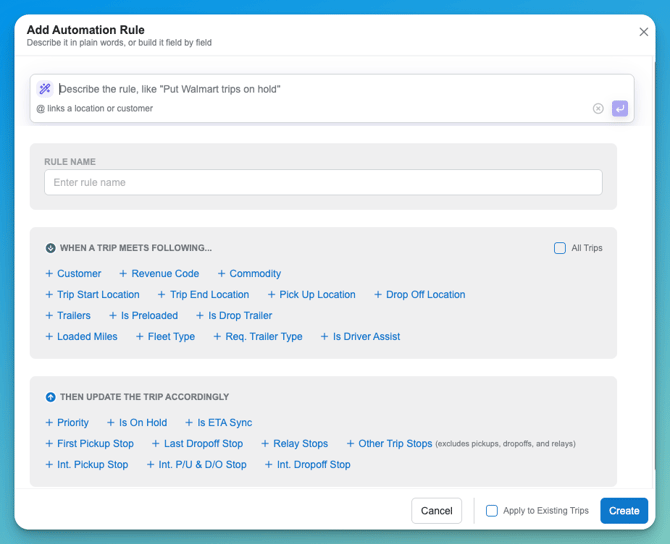
- Select Add Automation Rule.
- Enter a Rule Name.
- Add one or more When a Trip meets… conditions.
- Under Then update the Trip accordingly, add the fields to update. To change a stop, add it from the action list, such as + First Pickup Stop, then choose its settings.
- To apply the rule to trips that already exist, select Apply to Existing Trips.
- Select Create. The rule applies on the next rule cycle.
Where You See the Results
- Trip and Load pages show the adjusted window on each stop, for example “FCFS: 09/18, 22:00 – 09/19, 06:00 CT,” or “NET:” and “NLT:” for those appointment types.
- Trip Detail shows Sync ETA: Enabled where it applies.
- The rule card shows when the rule was last updated and last applied.
Examples
| Goal | Conditions | Update |
|---|---|---|
| Stop early-arrival infeasibility at a preloaded origin | Trip Start Location = [origin]; Is Preloaded = Yes | First Pickup: Appt Type = No Earlier Than; Handling Time = 30 |
| Hard delivery cutoff your TMS doesn’t send | Trip End Location = [destinations] | Last Dropoff: Appt Type = No Later Than |
| Give a facility a looser arrival window | Trip End Location = [facility] | Last Dropoff: Appointment Window, Extend, Early by 2 hrs |
| Treat a drop-and-hook location as open all day | Pickup Location = [location]; Is Drop Trailer = Yes | Pickup: Appointment Window, All day |
| Model an overnight receiving window | Customer = [customer] | Last Dropoff: Appointment Window, Custom 22:00 to 06:00 (+1 day) |
| Allow after-hours arrival where the driver has yard access | Trip Start Location = [yard] | First Pickup: Limit to Operating Hours = No |
| Send live ETAs to your TMS for one division’s trips | Fleet Type = [division] | Sync ETA on |
Data Dictionary
| Name | Description | Data Type |
|---|---|---|
| Rule Name | Display name of the rule | String |
| Status | Whether the rule is Active or Inactive | Enum |
| Conditions | The trip criteria that determine which trips the rule applies to | List |
| Priority | Trip priority set by the rule (High, Medium, Low) | Enum |
| Is On Hold | Whether the trip is excluded from optimization | Boolean |
| Requirements | Driver requirement applied by the rule (REQUIRE, INCENTIVIZE, PENALIZE, PROHIBIT) | Enum |
| Sync ETA | Whether live ETA updates are sent to your TMS for the trip | Boolean |
| Stop | The stop the override applies to | Enum |
| Appt Type | Appointment type applied to the stop | Enum |
| Appointment Window Mode | Keep as-is, Extend, All day, or Custom | Enum |
| Early by / Late by | How far the window is extended earlier or later, in days and hours | Duration |
| Start / End | Start and end of a custom window | Time |
| Limit to Operating Hours | Whether arrival is limited to the location’s operating hours | Boolean |
| Handling Time | Dwell time override at the stop, in minutes | Integer |
| Last Updated / Last Applied | When the rule was last edited and last applied | DateTime |