
🎉 What's new
Non-live scenario banner
When you work in a scenario that isn't live, a banner at the top of LoadAi shows the scenario name and tells you that changes are not sent to your live integration and will not be dispatched to drivers.
How to use it: Select Browse Scenarios to open the Scenario Browse page, or Switch to Live Scenario to return to the live scenario. The banner stays visible as you move between pages in the same scenario and updates if you switch to a different non-live scenario. If you dismiss it, it won't reopen for that scenario until you switch to another scenario and come back.
Notes: The banner is informational only and never blocks your work. It disappears when you return to the live scenario. A live scenario is one connected to your TMS.

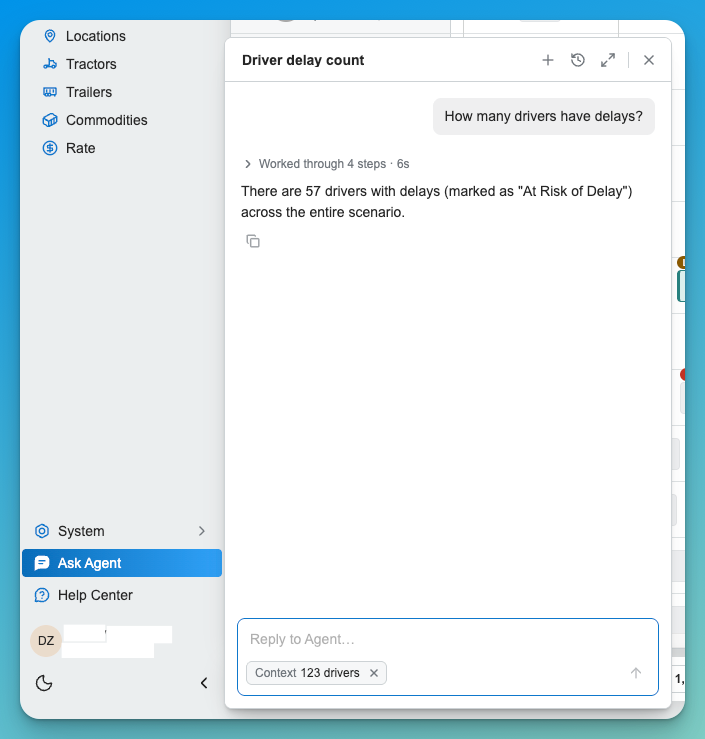
Ask Agent - Ai Assistant
Ask for AI help to understand a trip details, etas, recommendations and other settings within LoadAI
Appointment-confirmation rules
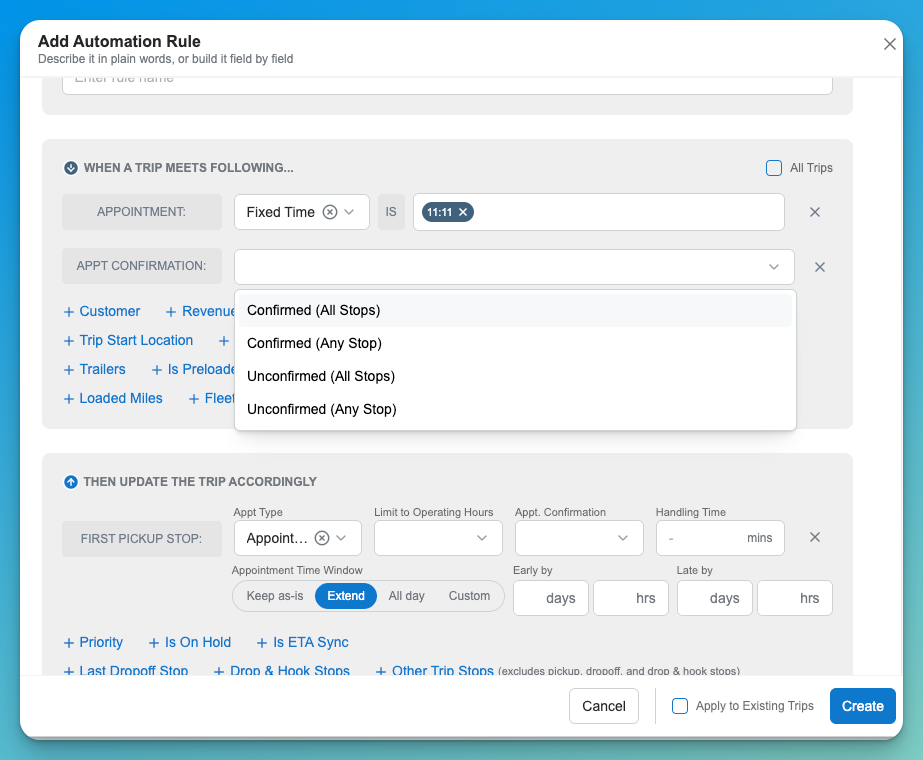
Trip Override rules can now match on appointment times and appointment-window lengths, and set a stop's appointment-confirmation status to Not Required, Required, or Confirmed. This is useful when your TMS doesn't provide a confirmation status.
Examples:
- Mark an appointment Required when the pickup window is longer than 24 hours.
- Mark an appointment Confirmed when the appointment window is shorter than 2 hours.
- Match stops with a specific appointment time, or a time window such as 00:00 – 23:59, using the Any Stop Appt condition.
You can also create a Trip Override rule that keeps trips with unconfirmed appointments out of bulk optimization runs and driver-centric recommendations until they are confirmed.
Load forecasting from your history
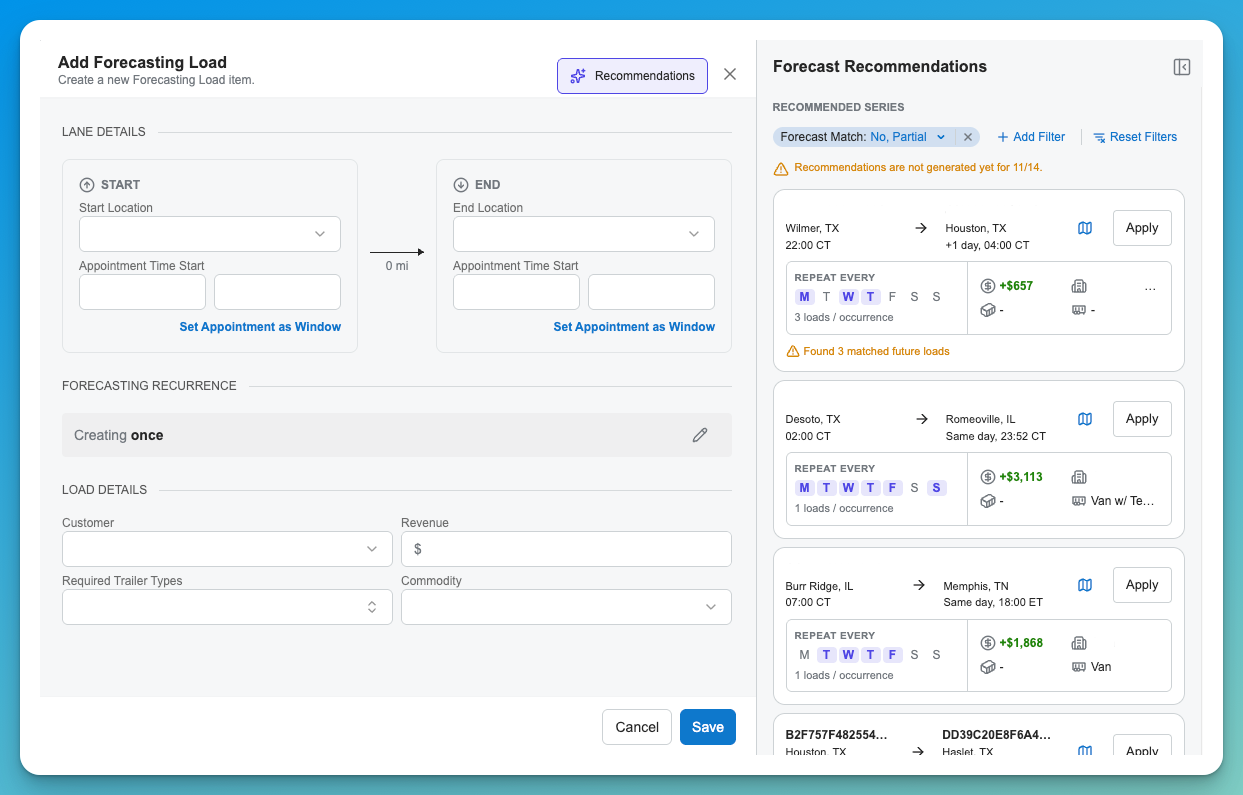
LoadAi can suggest how many loads to expect for each customer lane (customer, origin, destination) on each of the next 7 pickup dates, based on that lane's own history.
How it works:
- For each pickup date, LoadAi looks at the lane's load counts on the same weekday over the last 4 weeks and suggests the middle (median) value, rounded up when it ends in .5. Every suggestion is at least 1 load.
- If exactly one of the 4 weeks had no loads, the week before those 4 can fill in. Lanes with two or more missed weeks don't get a suggestion.
- Each suggestion shows the 4 weekly counts, whether the earlier week was used, the median, and the dates it was based on.
- Holiday weeks count like any other week.
- Each pickup date is forecast once and is not recalculated.
How to use it: Review the suggestions and turn them into forecast loads or recurring forecast series. See the Forecasted Loads article for how forecast loads work.
Export the Dispatch grid to CSV
The Dispatch grid can now be exported to CSV. The file matches the grid on screen: the visible columns, your filters, your sorting, and the rows shown.
How to use it: Set up the grid the way you want it, then use the export option for the Dispatch grid.

Simpler location activities
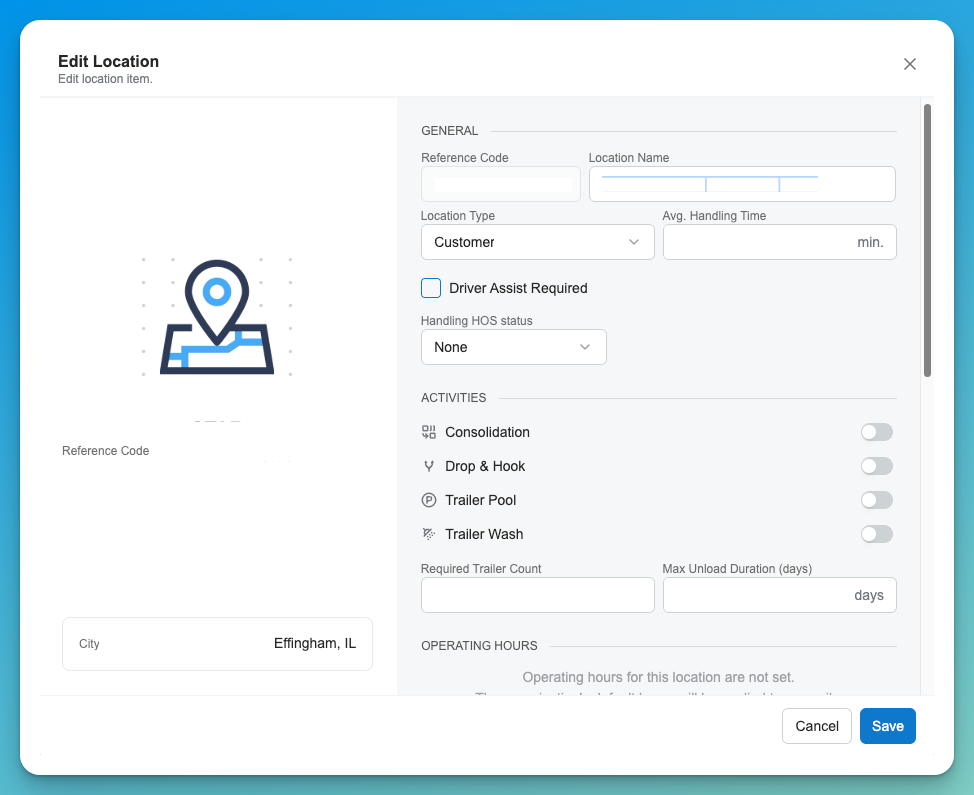
Driver Domicile and Meet & Turn are no longer location activities. Locations now offer Drop & Hook, Consolidation, Trailer Pool, and Trailer Wash. Trailer Wash appears only for organizations that have the environment configuration enabled.
Notes:
- Existing locations keep their other activities. The removed activities no longer appear in the location panel, the Locations grid, the Support Activities filter, or bulk edit.
- Any location can be saved as a driver's domicile (base) location. There is no longer a "Driver Domicile activity" warning.
- CSV location imports ignore Driver Domicile and Meet & Turn, and still import any valid activities on the same row.
- "Relay" is now called "Drop & Hook" throughout LoadAi.
- Consolidation is the activity previously shown as Sort.
Duplicate roles
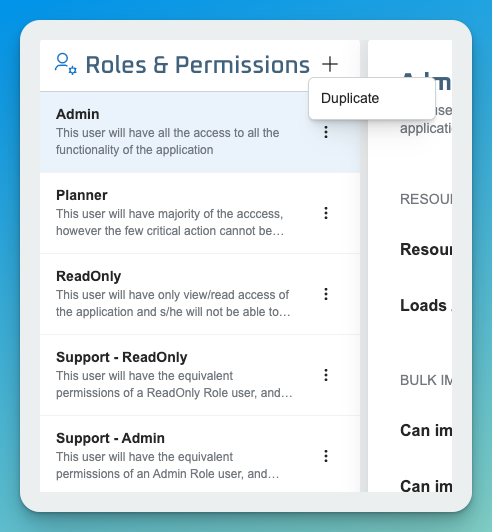
Each role in App Roles & Permissions now has a three-dot menu with a Duplicate option.
How to use it: Open the three-dot menu on a role and select Duplicate. A new role is created with the same configuration, named "<Role Name> Copy."
Notes: Duplicate is available only to users who have permission to create roles.
Driver training roles
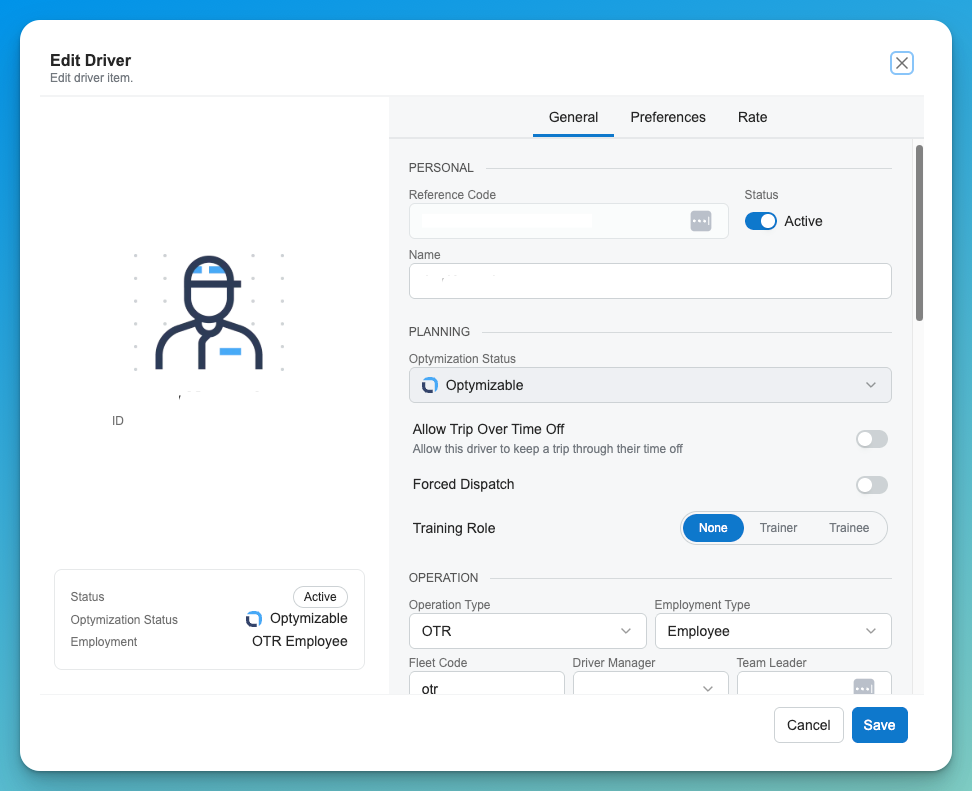
Drivers can be identified as Trainers or Trainees based on the training codes in your TMS. ⚠
How to use it: On the Drivers page, select Add Filter, then Training Role. The filter supports selecting multiple values, including None.
Richer trailer details
Trailer records capture more information to support operations such as tanker hauling, including trailer profile details, current state, wash information, and recent history. Trailer location can also be updated automatically from supported tracking providers, with hourly GPS updates, loaded or empty status, and readable street locations.
Clearer trip ETA details
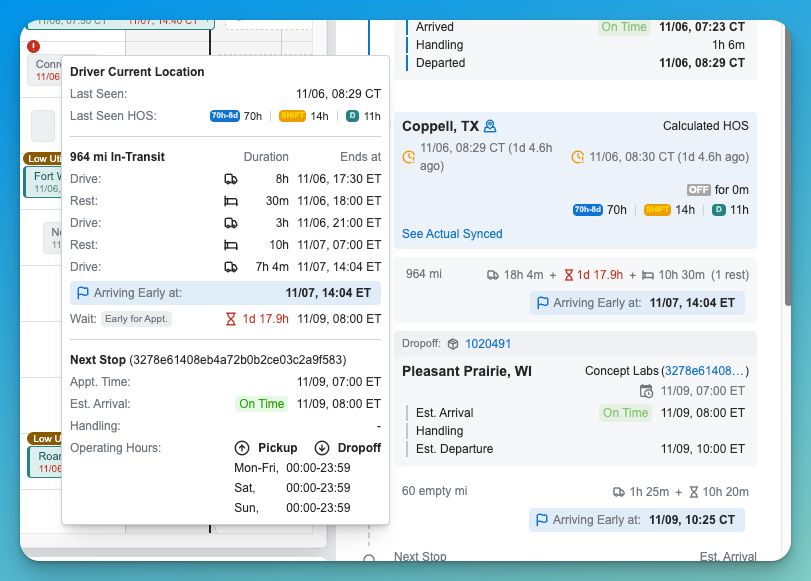
Select a trip's transit summary to see a detailed timeline that explains how the ETA to the next stop was calculated, including transit segments, durations, appointments, operating hours, warnings, and Hours of Service details. Gap tooltips are easier to read, with aligned duration icons, "arriving early" indicators, appointment types, and consistent sizing. The first leg of a trip now shows departure Hours of Service like the others.
Other improvements
- The Dispatch footer shows consolidated KPIs and counts.
- Action menus and header controls in the side panels for loads, trips, drivers, and other records are clearer and more consistent.
- Radius-search results are grouped by city and named location, with flags for Canadian and Mexican cities. Location names no longer show the reference code twice.
- Stops carry the trailer ID and TMS event number, shown in stop details and used in recommendations.
- Stop activities are mapped more completely, and reposition stops are named consistently.
- Trailer-assigned driver information is included in trip planning.
- Completed and empty trip colors are updated in the simulation Gantt.
Questions about anything in this release? Your Customer Success contact is the fastest route.