
Table of Contents
- Key Use Cases
- Navigation Overview
- Filters
- KPI Cards
- Trend Chart
- Top Planners, Drivers, and Customers
- Planners, Drivers, and Customers Tabs
- Exporting and Refreshing
- How Metrics Are Calculated
- Data Dictionary
Key Use Cases
- Track trip volume, revenue, and deadhead over any period.
- See how much of your planning comes from Optymized recommendations versus manual assignment.
- Compare results with the previous period.
- Find your most active planners, busiest drivers, and highest-volume customers.
- Prepare results for business reviews.
Navigation Overview
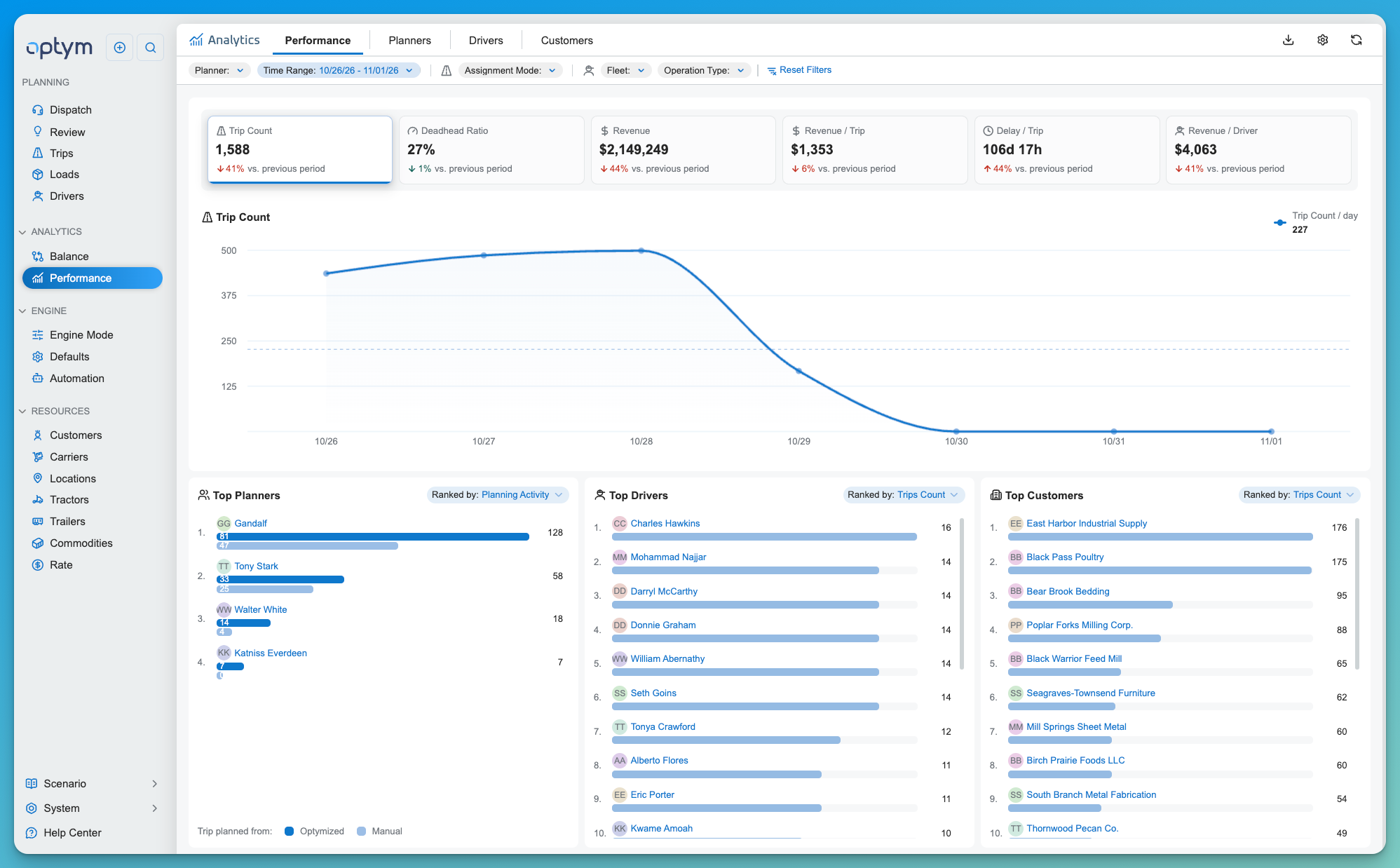
Go to Analytics > Performance. Four tabs run across the top: Performance, Planners, Drivers, and Customers. The Performance tab opens first. Under it are the filter bar, the KPI cards, the trend chart, and the three leaderboards.
Filters
Use the filter bar to focus every card, chart, and list on the page.
| Filter | Narrows by |
|---|---|
| Planner | Trips planned by a specific user. |
| Time Range | The period to report on. Defaults to the most recent week. [Between, This Week, Last Week, This Month] |
| Assignment Mode | How the trip was assigned: Bulk, One to Many, Manual, or TMS. |
| Fleet | The fleet. |
| Operation Type | Local, Regional, or OTR. |
Select Reset Filters to clear them.
KPI Cards
Six cards summarize the period. Each shows its value and how it changed compared with the previous period, in green or red.
| Card | Shows |
|---|---|
| Trip Count | Trips completed in the period. |
| Deadhead Ratio | Deadhead miles as a share of total miles. |
| Revenue | Total revenue from those trips. |
| Revenue / Trip | Average revenue per trip. |
| Delay / Trip | Average delay per trip. |
| Revenue / Driver | Average revenue per driver. |
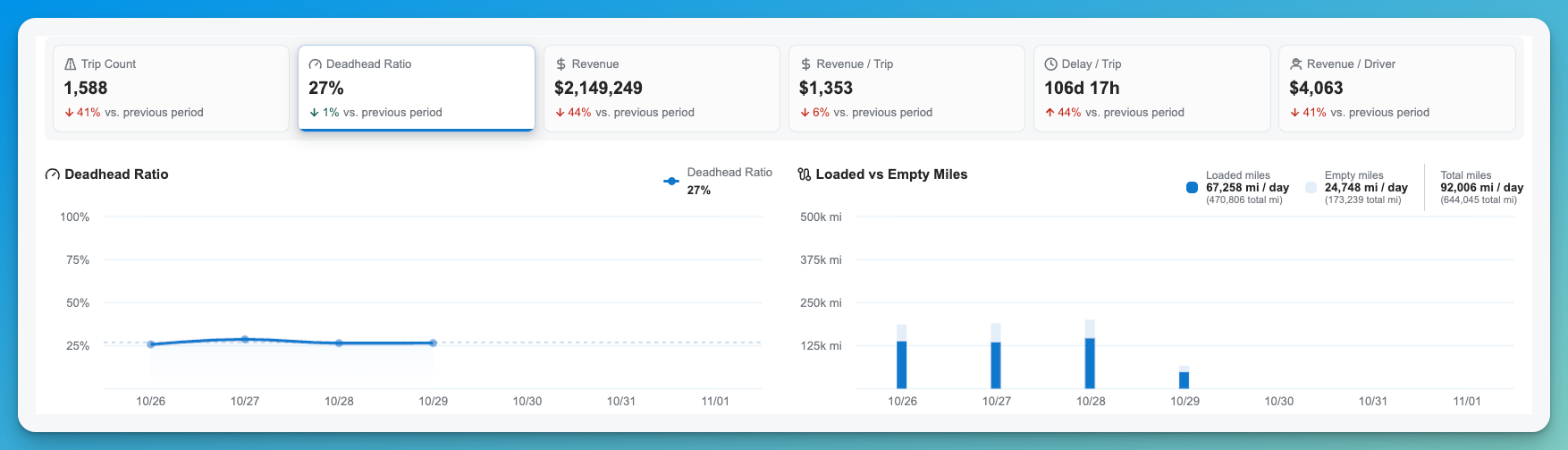
Select a card to chart it below.
Trend Chart
The chart below the cards plots the selected card over your time range, with a dashed line showing the average and a legend with the daily value (for example, “Trip Count / day”). Select a different card to change the chart.
Top Planners, Drivers, and Customers
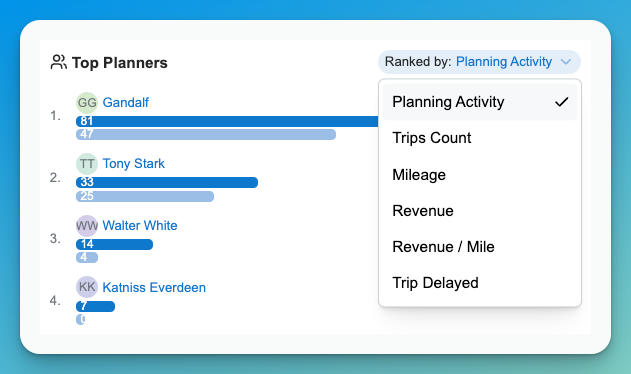
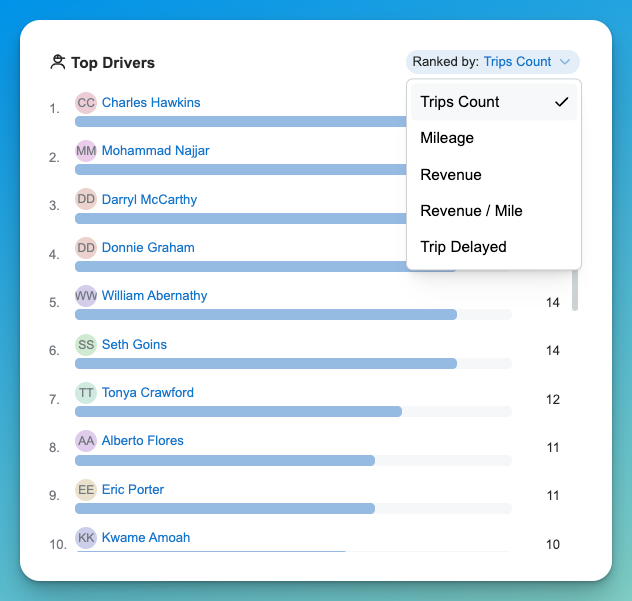
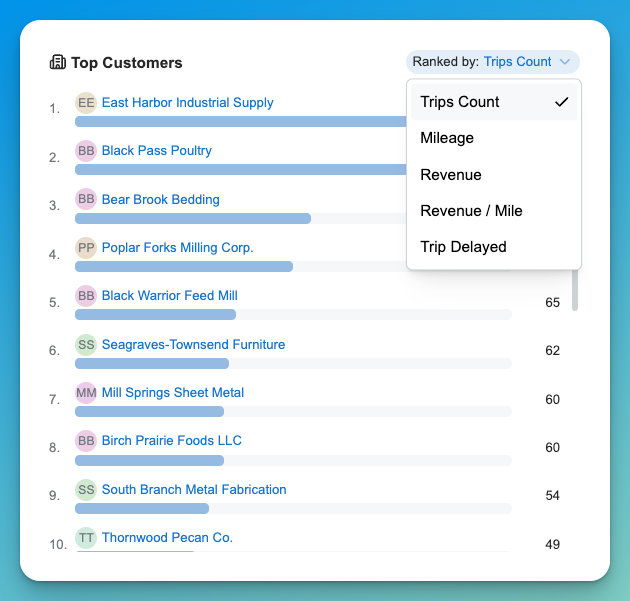
Three leaderboards sit under the chart. Each has a Ranked by dropdown to change how the list is sorted. Names link to more detail. Each link goes to the respective objects tab:
- Top Planners (ranked by Planning Activity by default). Each bar is split by how the trips were planned: Optymized (dark) and Manual (light), with the total shown at the right. Results can be Ranked through multiple options:
- Top Drivers (ranked by Trips Count by default).
- Top Customers (ranked by Trips Count by default).
Planners, Drivers, and Customers Tabs
The three other tabs give a closer look at each group:
Planners Tab
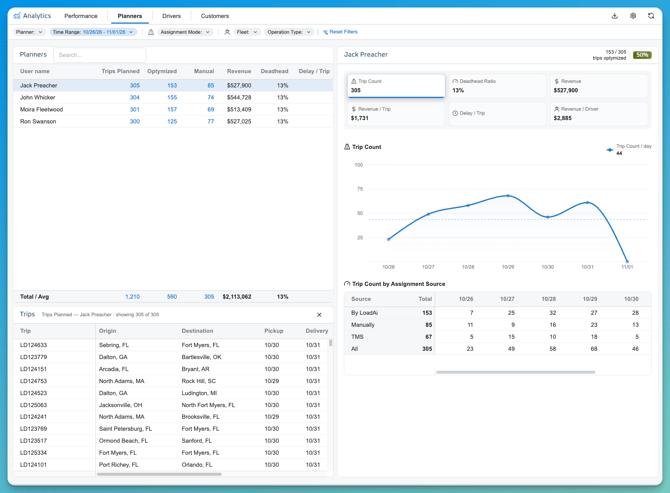
The Planners tab shows how each planner’s trips were planned and how those trips performed. Use it to see who relies on recommendations, compare planners side by side, and look at the trips behind any number.
Filters
The same filters as the Performance tab apply: Planner, Time Range, Assignment Mode, Fleet, and Operation Type, plus Reset Filters. Everything on the tab updates with them.
Planners Table
The left panel lists every planner who planned trips in the period. Use Search to find a planner by name. Select a row to see that planner’s detail on the right.
| Column | Shows |
|---|---|
| User name | The planner. |
| Trips Planned | All trips the planner planned in the period. |
| Optymized | Trips planned from a LoadAi recommendation. |
| Manual | Trips the planner assigned manually in LoadAi. |
| Revenue | Revenue from those trips. |
| Deadhead | Deadhead miles as a share of total miles. |
| Delay / Trip | Average delay per trip. |
A Total / Avg row at the bottom summarizes all planners: totals for trip counts and revenue, and the average for deadhead and delay.
Optymized and Manual won’t add up to Trips Planned. The remainder are trips planned in your TMS. In the example, one planner has 306 trips planned: 156 Optymized, 75 Manual, and 75 planned in the TMS.
Open the trips behind a number. The trip counts are links. Select Trips Planned, Optymized, or Manual for a planner to open the Trips panel below the table. It lists that planner’s trips, labeled with the planner and how many are shown (for example, “Trips Planned, showing 306 of 306”).
| Column | Shows |
|---|---|
| Trip | The trip ID. |
| Origin / Destination | The trip’s first and last locations. |
| Pickup / Delivery | The pickup and delivery dates. |
| Miles | Mileage of those trips |
| Revenue | Revenue from those trips. |
| Assignment Source | LoadAi, Manual, or TMS |
Scroll right for more columns. Close the panel with the ×.
Planner Detail
The right panel shows the planner you selected.
Optymized share. The header shows how many of the planner’s trips were optymized, for example 156 / 306, with the percentage as a badge (51%). This is that planner’s adoption of recommendations.
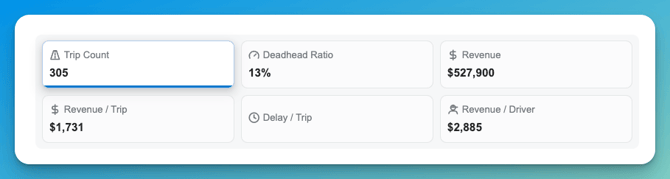
KPI cards. The same six cards as the Performance tab, Trip Count, Deadhead Ratio, Revenue, Revenue / Trip, Delay / Trip, and Revenue / Driver, now for this planner only. Select a card to chart it.
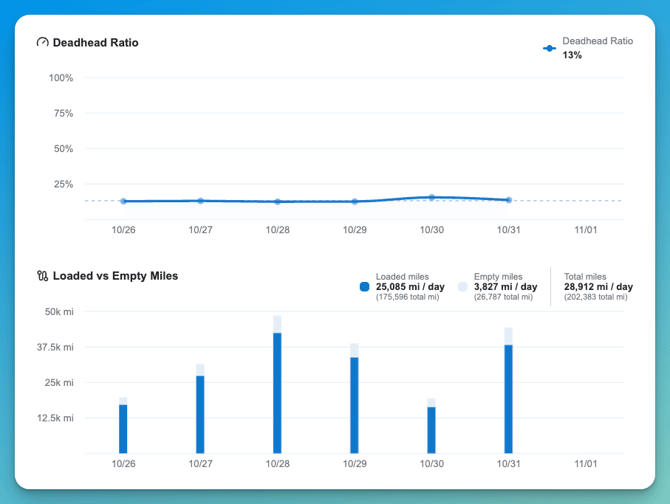
Trend chart. Plots the selected card by day across your time range, with a dashed average line and the daily average in the legend (for example, “Trip Count / day”).
Trip Count by Assignment Source. A table shows how the planner’s trips were assigned, with a column for each day:
| Row | Meaning |
|---|---|
| By LoadAi | Trips planned from a LoadAi recommendation. |
| Manually | Trips the planner assigned manually in LoadAi. |
| TMS | Trips planned in your TMS. |
| All | The total of the three. |
A Total column on the left sums each row across the period. Scroll right to see later days.
Drivers Tab
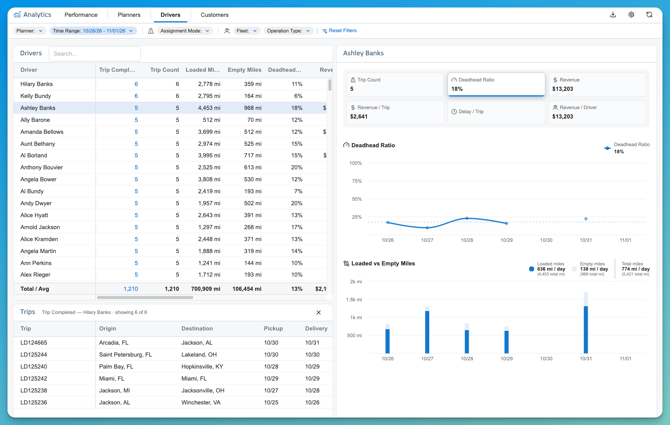
The Drivers tab shows each driver’s completed trips, miles, and revenue for the period. Use it to see who is running the most freight, compare loaded and empty miles, and spot drivers with high deadhead.
Filters
The same filters as the other tabs apply: Planner, Time Range, Assignment Mode, Fleet, and Operation Type, plus Reset Filters. The whole tab updates with them.
Drivers Table
The left panel lists every driver with trips in the period. Use Search to find a driver by name. Select a row to see that driver’s detail on the right.
| Column | Shows |
|---|---|
| Driver | The driver name. |
| Trips Completed | Trips the driver completed in the period. Select the number to see the trip list below. |
| Trip Count | Trips counted for the driver in the period. |
| Loaded Miles | Miles driven with freight. |
| Empty Miles | Miles driven without freight. |
| Deadhead | Empty miles as a share of total miles. |
| Revenue | Revenue from the driver’s trips. |
Scroll right for more columns. A Total / Avg row at the bottom summarizes all drivers: totals for trips and miles and revenue, and the average for deadhead.
Open a driver’s trips. Select a driver’s Trips Completed number to open the Trips panel below the table. It’s labeled with the driver and how many trips are shown (for example, “Trips Completed, showing 6 of 6”).
| Column | Shows |
|---|---|
| Trip | The trip ID. |
| Origin / Destination | The trip’s first and last locations. |
| Pickup / Delivery | The pickup and delivery dates. |
| Miles | Loaded Miles of the Trip |
| Revenue | Revenue value of the Load/Trip |
| Assignment Source | LoadAi, Manual, TMS |
Close the panel with the ×.
Driver Detail
The right panel shows the driver you selected.
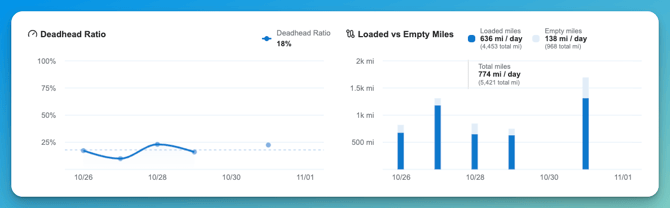
KPI cards. The same six cards as the other tabs, Trip Count, Deadhead Ratio, Revenue, Revenue / Trip, Delay / Trip, and Revenue / Driver, now for this driver only. Select a card to chart it.
Trend chart. Plots the selected card by day across your time range, with a dashed average line and the period’s value in the legend (for example, “Deadhead Ratio 18%”). Days when the driver ran no trips have no point on the chart.
Customers Tab
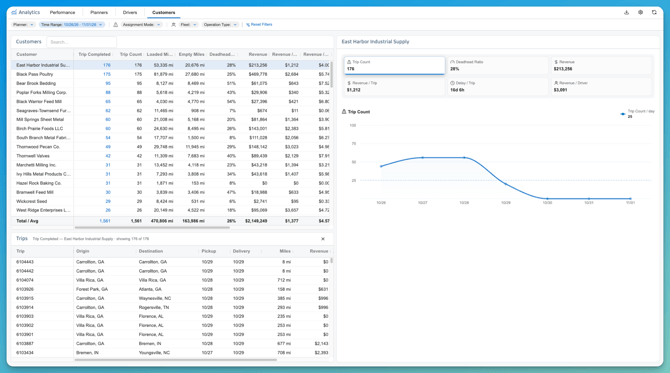
The Customers tab shows how each customer’s freight performed in the period. Use it to compare customers by trips, miles, revenue, and deadhead, find lanes that run empty, and see which customers earn the most per mile.
Filters
The same filters as the other tabs apply: Planner, Time Range, Assignment Mode, Fleet, and Operation Type, plus Reset Filters. The whole tab updates with them.
Customers Table
The left panel lists every customer with trips in the period. Use Search to find a customer by name. Select a row to see that customer’s detail on the right.
| Column | Shows |
|---|---|
| Customer | The customer. |
| Trip Completed | Trips completed for the customer. Select the number to see the trips. |
| Trip Count | Trips counted for the customer. |
| Loaded Miles | Miles driven with freight. |
| Empty Miles | Miles driven without freight. |
| Deadhead Ratio | Empty miles as a share of total miles. |
| Revenue | Total revenue. |
| Revenue / Trip | Revenue divided by trips. |
| Revenue / Loaded Miles | Revenue divided by loaded miles. |
| Revenue / Total Miles | Revenue divided by loaded plus empty miles. |
| Delayed Trip Count | Trips with a delay. |
| Delay / Trip | Average delay per trip. |
| Revenue / Driver | Revenue divided by the number of drivers who hauled the customer’s freight. |
| Total Miles / Driver | Loaded plus empty miles divided by the number of drivers. |
Scroll right to see all columns. A Total / Avg row at the bottom summarizes all customers. Its ratios are calculated from the combined totals, not by averaging the rows above.
Open a customer’s trips. Select a customer’s Trip Completed number to open the Trips panel below the table. It’s labeled with the customer and how many trips are shown (for example, “Trip Completed, showing 1 of 1”).
| Column | Shows |
|---|---|
| Trip | The trip ID. |
| Origin / Destination | The trip’s first and last locations. |
| Pickup / Delivery | The pickup and delivery dates. |
| Miles | The trip’s miles. |
| Revenue | The trip’s revenue. |
| Assignment Source | LoadAi, Manual, TMS |
Scroll right for more columns. Close the panel with the ×.
Customer Detail
The right panel shows the customer you selected.
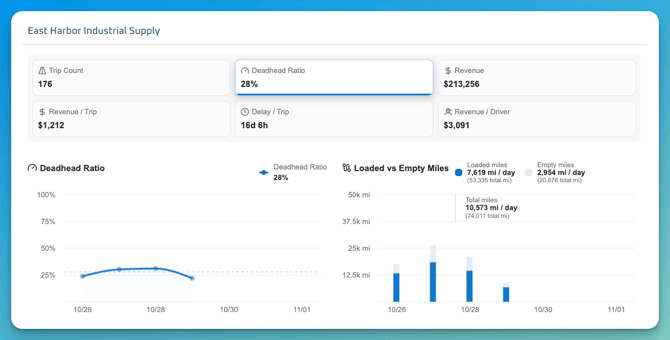
KPI cards. The same six cards as the other tabs, Trip Count, Deadhead Ratio, Revenue, Revenue / Trip, Delay / Trip, and Revenue / Driver, now for this customer. Select a card to chart it.
Trend chart. Plots the selected card by day across your time range, with a dashed average line and the daily average in the legend (for example, “Trip Count / day”).
Exporting and Refreshing
The icons at the top right of the page:
- Download: export the dashboard. The file is a multi-tabbed Excel Workbook.
- Settings (gear): Controls the View Configuration
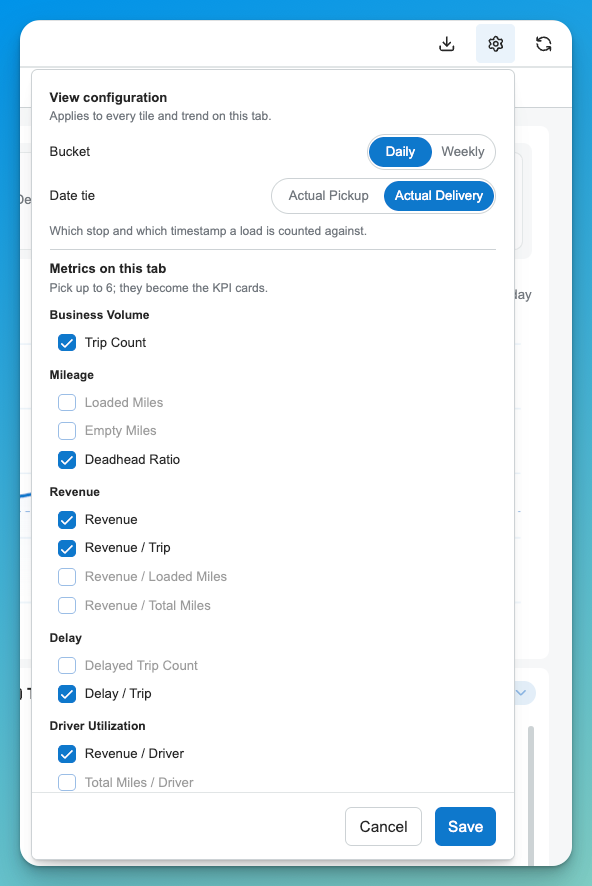
- Refresh: reload the data.
How Metrics Are Calculated
- Completed trips. The dashboard reports completed trips. ⚠ Confirm that other statuses aren’t included.
- Optymized or Manual. A trip is Optymized (Bulk Optimization or 1:Many Optimization) when it was planned from a LoadAi recommendation. A trip is Manual when a planner assigned it directly but still with guidance from within LoadAi. Loads assigned within your TMS directly will only show TMS and depending on the TMS your company uses, we may not have visibility as to which planner made the assignment.
- Deadhead ratio. Deadhead miles divided by total miles.
- Delay. At a completed stop, delay is the actual start time minus the end of the appointment window, or the appointment start if there is no window end. Stops with a No Earlier Than appointment aren’t counted as delayed.
- Revenue / Driver. Total revenue divided by the number of drivers with trips in the period.
Data Dictionary
| Name | Description | Data Type |
|---|---|---|
| Time Range | The reporting period | Date range |
| Planner | The user who planned the trip | User |
| Assignment Mode | How the trip was assigned: Optymized or Manual | Enum |
| Trip Count | Completed trips in the period | Integer |
| Deadhead Ratio | Deadhead miles as a share of total miles | Percentage |
| Revenue | Revenue from completed trips | Currency |
| Revenue / Trip | Average revenue per trip | Currency |
| Delay / Trip | Average delay per trip | Duration |
| Revenue / Driver | Average revenue per driver | Currency |