
Table of Contents
Key Use Cases
- Keep a dedicated fleet on specific customers or lanes.
- Keep certain drivers off certain freight, such as local drivers off long-haul loads.
- Prefer a specific driver for a lane by adding an incentive.
- Group rules by Driver Manager or Team Leader, not only by fleet.
- Create rules quickly by typing a sentence instead of filling in a form.
Navigation Overview
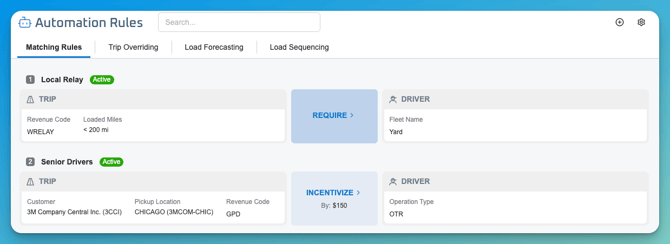
Go to Engine > Automation and open the Matching Rules tab. Rules appear as a numbered list of cards. Each card shows:
- The rule name and an Active / Inactive badge.
- A Trip conditions panel, or All Trips if the rule isn’t limited to particular trips.
- A Driver conditions panel, or All Drivers if the rule isn’t limited to particular drivers.
- A rule type badge (INCENTIVIZE, REQUIRE, PENALIZE or PROHIBIT) with arrows showing which side the rule flows from.
How Matching Rules Work
Each rule has four parts: trip conditions, driver conditions, a rule type, and a direction. Soft rules also carry a dollar value.
Rule types
Rules are hard or soft.
| Type | Kind | Effect |
|---|---|---|
| REQUIRE | Hard | The engine must match the specified trips and drivers together. Trips or drivers that don’t meet the conditions are excluded from the pairing. |
| PROHIBIT | Hard | The engine may never match the specified trips and drivers. |
| INCENTIVIZE | Soft | Adds a dollar value to the score when conditions match, making the pairing more attractive without requiring it. |
| PENALIZE | Soft | Subtracts a dollar value when conditions match, discouraging the pairing without prohibiting it. |
The dollar value sets how strongly the engine favors or avoids a pairing compared with its other options.
Direction
Direction controls which side the rule flows from.
| Direction | Meaning | Example |
|---|---|---|
| One-way (trip to driver) | The specified trips apply the constraint to the specified drivers. | These loads must only go to drivers with a certain tag. |
| One-way (driver to trip) | The specified drivers apply the constraint to the specified trips. | These drivers should only run one customer’s loads. |
| Mutual | The constraint applies in both directions. | This dedicated fleet and these lanes are always paired together. |
The arrows on the rule card show the direction.
Trip conditions
Scope the trip side with any combination of these filters, or choose All Trips:
- Customer
- Revenue Code
- Fleet Type
- Required Trailer Type
- Pickup Location
- Dropoff Location
- Any Stop Location
- Is Driver Assist
- Loaded Miles
Driver conditions
Scope the driver side with any combination of these filters, or choose All Drivers:
- Tags
- Driver Name / ID
- Operation Type
- Default Tractor
- Fleet Code
- Tractor Fleet Code (for team drivers) ⚠
- Driver Manager
- Team Leader
Driver Manager and Team Leader work just like Fleet: a rule can target every driver under a manager or team leader, and the engine honors it the same way. ⚠ Confirm the filter labels and the Tractor Fleet Code option.
Rule cards and detail panels clearly label rules that apply to All Trips or All Drivers.
Creating a Matching Rule
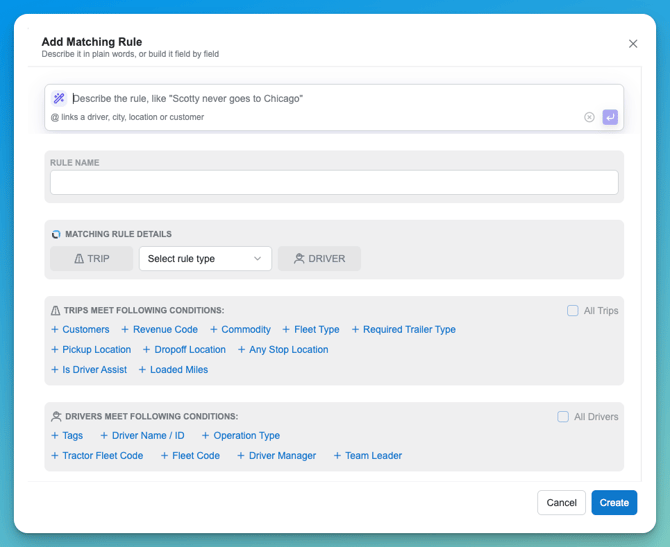
- Select Add Matching Rule.
- Enter a Rule Name.
- Choose the Matching Rule Type: first the direction, then REQUIRE, INCENTIVIZE, PENALIZE or PROHIBIT. For soft types, enter the dollar value.
- Add Trip conditions or check All Trips.
- Add Driver conditions or check All Drivers.
- Select Create. The rule is added to the list.
Creating a Rule with an AI Prompt
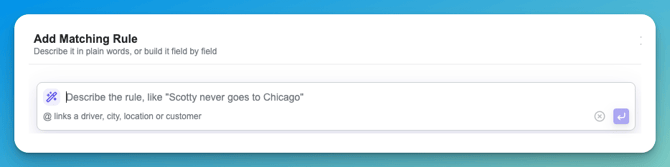
Instead of filling in the form, describe the rule in plain language, for example, “Scotty never goes to Chicago.” LoadAi fills in the rule form for you.
- Link records as you type. Type @ to see suggestions grouped by Drivers, Cities, Locations and Customers. Typing three or more characters of a known name also opens suggestions. Use the arrow keys with Enter or Tab to link one, and Esc to keep your text as typed. A linked record becomes a chip you can remove.
- Resolve unclear names in place. If a name could match several records, the words are highlighted and numbered, and a needs a match panel appears under the prompt. Pick one driver, or one city or several locations, for each word, then select Apply to rule. Keep as text fills in only what is unambiguous. No form fields change until you apply.
- Name and type. The rule name is generated from your prompt and labeled “Named from your prompt.” Edit it and it stops updating, with a Use suggested name option. Negative wording such as “not,” “never,” or “avoid” sets a Never match rule; otherwise it’s Prefer.
- Review and undo. Fields filled by the prompt are visibly marked, and each condition chip can be removed. A status line reads “Filled N fields from your prompt,” with an Undo to clear them.
Linked drivers fill Driver name / ID, linked cities and locations fill Any stop location, and linked customers fill Customers.
Managing Rules
- Turn a rule on or off with its Active / Inactive badge.
- Edit, delete and reorder: Confirm where these actions appear and whether rule order matters when two rules overlap.
Seeing Rules on a Driver
A driver’s matching rules are also shown in Driver Details. Open a driver or team, then go to Preferences > Matching Rules (Team Details > Preferences > Matching Rules for teams) to see which rules apply to them.
Examples
| Goal | Type | Setup |
|---|---|---|
| Keep a dedicated fleet on one customer’s freight | REQUIRE, Mutual | Trips: Customer = [customer]. Drivers: Tag = [fleet tag]. |
| Keep specific drivers on one customer | REQUIRE, one-way (driver to trip) | Trips: Customer = [customer]. Drivers: [driver names or IDs]. |
| Keep local drivers off long-haul loads | PROHIBIT, Mutual | Trips: Loaded Miles > 150. Drivers: Tag = [local tag]. |
| Take a group of drivers out of planning | PROHIBIT, one-way (driver to trip) | Trips: All Trips. Drivers: Tag = [tag]. |
| Prefer a specific driver on a lane | INCENTIVIZE, one-way (trip to driver) | Trips: Pickup = A, Dropoff = B. Drivers: [driver]. Value: [amount]. |
| Keep a manager’s drivers on a customer’s freight | REQUIRE, one-way (driver to trip) | Trips: Customer = [customer]. Drivers: Driver Manager = [manager]. |
Tips and Notes
- Use soft rules when you want to nudge the plan, and hard rules when a pairing must or must never happen.
- ⚠ Hard rules narrow the engine’s choices, so too many can leave trips without a driver.
- Matching rule results honor active Live Optimization rejections.
- To change trip data itself, such as appointment windows or priority, use Trip Overriding.
Data Dictionary
| Name | Description | Data Type |
|---|---|---|
| Rule Name | Display name of the rule | String |
| Status | Whether the rule is Active or Inactive | Enum |
| Rule Type | REQUIRE, PROHIBIT, INCENTIVIZE or PENALIZE | Enum |
| Direction | One-way (trip to driver), one-way (driver to trip), or Mutual | Enum |
| Value | Dollar amount for INCENTIVIZE and PENALIZE rules | Currency |
| Trip Conditions | Filters that scope the trip side, or All Trips | List |
| Driver Conditions | Filters that scope the driver side, or All Drivers | List |